If you erase or shred hard drives in bulk - on a customer's site, for example - you can import the list of drives onto the customer's Inbound Order, one item for each drive, with what was done to it. This guide shows how, with a worked example.
Importing is an advanced feature, so some confidence with spreadsheets helps. If you have not imported before, read Importing Data into RecyclyERP: Step by Step (opens in a new tab) first. If you are unsure about your file, email it to support@recyc.ly and Recycly Support will check it for you.
The hard drives template
Start from the hard drives template (opens in a new tab), a spreadsheet in Google Sheets that anyone with the link can open. Choose File > Download > Microsoft Excel (.xlsx) to save your own copy. It is not the template on the Items & Lots import screen, which is for computers and their parts.
- Inbound Order - the Job ID of the customer's order, e.g. IB00123, and nothing else: never the order's full label or the customer's name.
- Asset Type - the drive's Asset Type, e.g. Storage: SATA/SSD or Storage: SATA/HDD, spelt exactly as in RecyclyERP.
- Manufacturer, Model, Serial Number and Asset Number - the drive itself. Give every drive its serial number, so each one can be traced.
- Storage Size (GB), Storage Form Factor (e.g. 2.5" or 3.5") and Storage Interface (e.g. SATA).
- Storage Processing Action - what was done to the drive. As standard: Erase, Crush, Shred or Granulate.
- Storage Processing Status - how far that got. As standard: Pending, In Progress, Completed or Failed.
- Next Action - the drive's next step in your processing, e.g. Recycle.
- New Item(s) Stock Status, New Item(s) Warehouse and New Item(s) Location - "Received and in warehouse" books each drive into stock at the Warehouse and Location given. Leave the Location blank and the drive is recorded as not yet received, with no warning.
Replace the template's example rows with your own drives. They give "Shredded" as the status, which is not one of the standard statuses: for a drive that has been shredded, use Completed.
Worked example: four drives shredded on site
Four drives from Clayfield High School were shredded on site under Inbound Order IB00010. The file has one row for each drive:
| Inbound Order | Asset Type | Manufacturer | Model | Serial Number | Storage Size (GB) | Storage Form Factor | Storage Processing Action | Storage Processing Status |
|---|---|---|---|---|---|---|---|---|
| IB00010 | Storage: SATA/SSD | Samsung | 860 EVO | S3Z9NB0K100001 | 256 | 2.5" | Shred | Completed |
| IB00010 | Storage: SATA/SSD | Crucial | BX500 | 2033E2A10002 | 480 | 2.5" | Shred | Completed |
| IB00010 | Storage: SATA/HDD | Seagate | ST1000DM010 | Z9A1B0003 | 1000 | 3.5" | Shred | Completed |
| IB00010 | Storage: SATA/HDD | Western Digital | WD5000AAKX | WCC2EZ000004 | 500 | 3.5" | Shred | Completed |
The template's other columns are filled in on every row too: Asset Numbers CHS-HD-001 to CHS-HD-004, Storage Interface SATA, Next Action Recycle, and "Received and in warehouse" at Main Warehouse, WH01/Stock/Storage Area 1.
1. Load the file
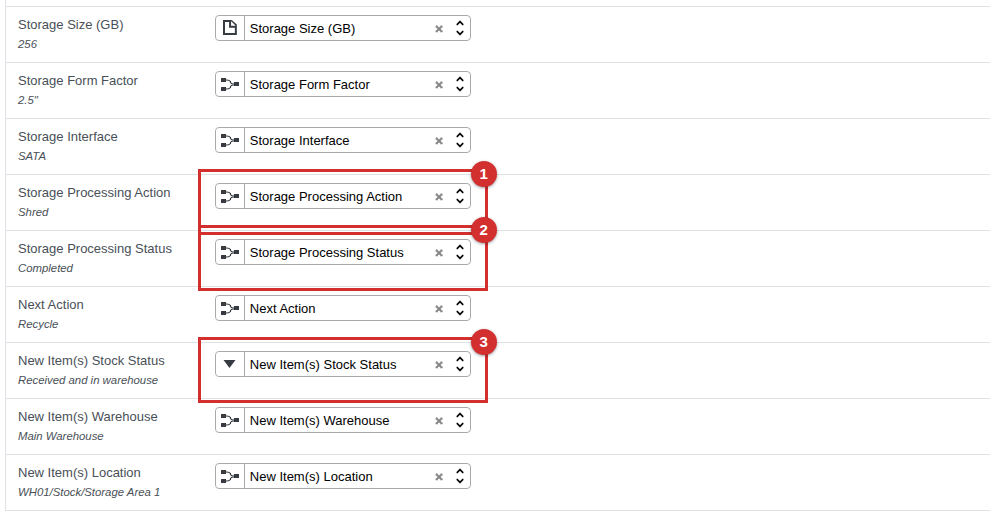
Go to Logistics & Inventory > Items & Lots > Items & Lots, click Import and load your file. Every column is matched to its field for you, including Storage Processing Action (1), Storage Processing Status (2) and New Item(s) Stock Status (3).
2. Test, then Import
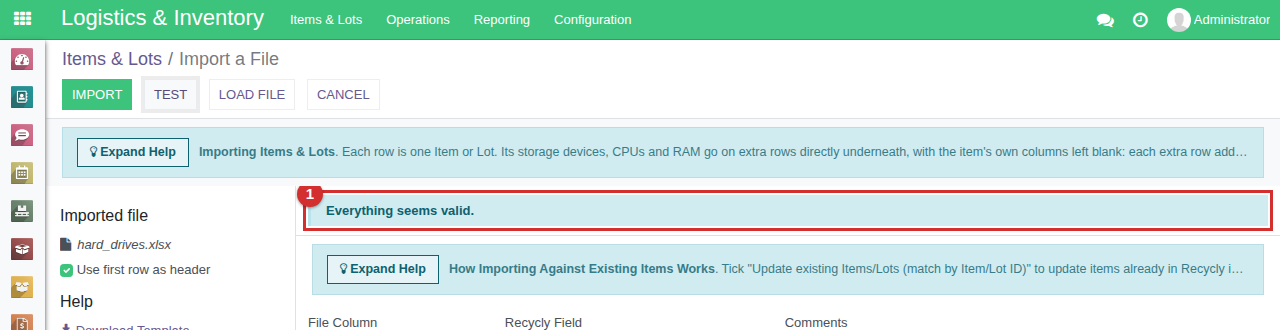
Click Test. Here the Manufacturer Seagate and the four Models were not in RecyclyERP yet, so Test listed them. Choose Create new values under those columns, after checking their spelling - Importing Items & Lots (opens in a new tab) explains the choices - and click Test again. When it says Everything seems valid. (1), click Import.
3. Check the order
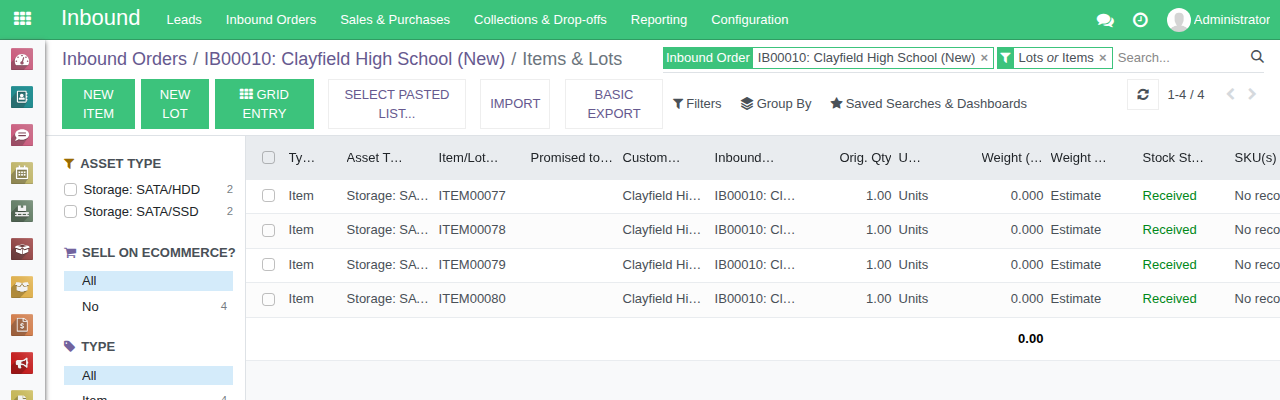
Open the Inbound Order and click its Items & Lots button. The four drives are on it, each one Received.
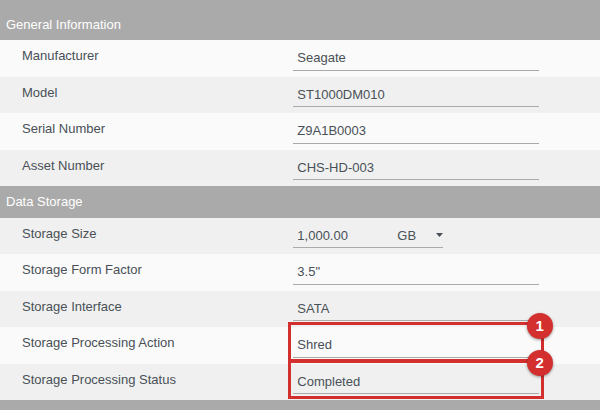
Open a drive to see its details from the file, with its Storage Processing Action (1) and Storage Processing Status (2) showing what was done to it.
Things to know
- A drive inside a computer is not imported this way. It belongs on the computer's own row, or an extra row under it, in an Items & Lots file: see Importing Items & Lots (opens in a new tab).
- Storage Processing Actions and Statuses must match the lists in your RecyclyERP, spelt exactly. If yours have been changed from the standard ones, Test lists any value it cannot find, and See possible values shows yours.
- Importing the same file twice creates every drive twice. Test with a few rows first, and if an import stops part way, see "Large files" in Importing Items & Lots (opens in a new tab).