The Address Book holds every organisation and person your business deals with. One import can bring in Companies, their Sites and the people at both, all linked to one another. This guide explains the three kinds of Address Book record and the two fields people most often get wrong, then works through three examples you can copy.
Importing is an advanced feature, so some confidence with spreadsheets helps. If you have not imported before, read Importing Data into RecyclyERP: Step by Step (opens in a new tab) first. If you are unsure about your file, email it to support@recyc.ly and Recycly Support will check it for you.
Companies, Sites and Individuals
- Company - an organisation you deal with: a customer, a supplier, a courier.
- Site - a place that belongs to a Company, where a van actually turns up: a depot, a second office, a school's theatre. A Site's full name is its Company's name, a comma and a space, then the Site's own name, for example "Clayfield High School, Clayfield Theatre".
- Individual - a person, usually one who works at a Company or at a Site.
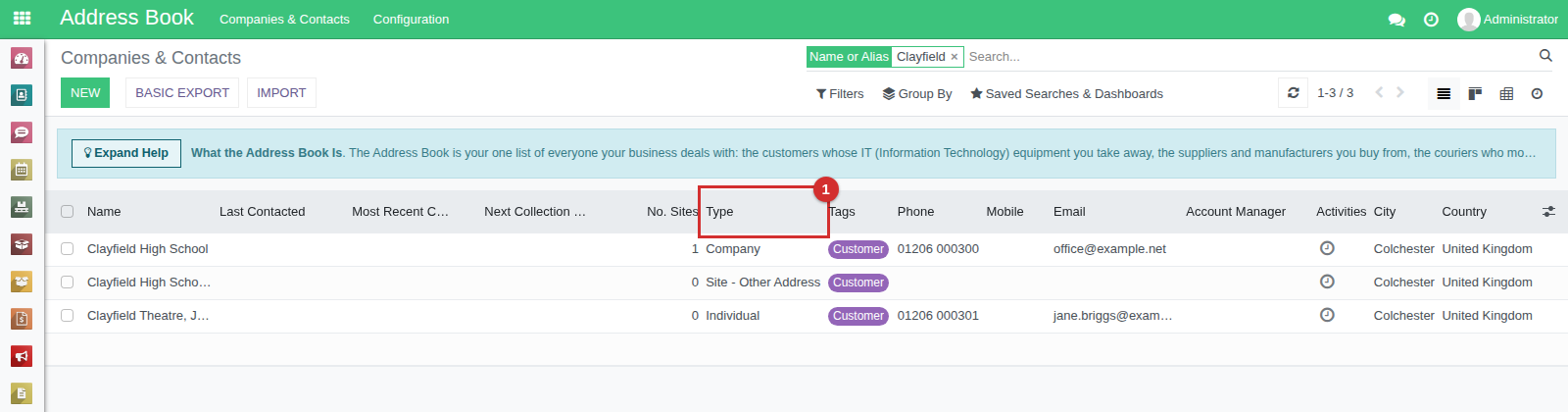
The Type column on Address Book > Companies & Contacts shows which each record is (1).
Company Type and "Is a Company"
The first column in the template, Company Type, says what each row is: Company, Site or Individual. On a record, the Company Type is shown just above the name.
You may also come across a field called Is a Company, in an export or in the list of fields on the import screen. It is ticked for Companies and for Sites, because a Site is treated as an organisation in its own right, and unticked for Individuals. So Is a Company cannot tell a Site from a Company. Use Company Type in your import file, and leave Is a Company out.
The template
Go to Address Book > Companies & Contacts, click Import, then click Download an Excel template for importing Customers, Suppliers & Contacts. You can delete the columns you do not need, but do not rename the ones you keep. Four columns do the linking:
- Company Type - Company, Site or Individual.
- Related Company - for a Site or an Individual, the Company (or Site) it belongs to, spelt exactly as it is in RecyclyERP or earlier in your file. Leave it empty on a Company's own row.
- Address Type - what the record is for: Contact, Invoice Contact, Delivery Address or Other Address. The template gives a Site the Address Type Other Address.
- Tags - Customer, Supplier or both. Several tags go in one cell, separated by commas: "Customer,Supplier".
Worked example 1: a Company with one contact
| Company Type | Name | Related Company | Tags | Job Position | Address Type | |
|---|---|---|---|---|---|---|
| Company | Redhill Data Services Ltd | Customer | office@example.com | Contact | ||
| Individual | Marie Okonjo | Redhill Data Services Ltd | Customer | marie.okonjo@example.com | IT Manager | Contact |
The Company comes first. Marie's Related Company is the Company's name exactly as it is spelt in the row above, so she is linked to it.
Worked example 2: a Company with two contacts
| Company Type | Name | Related Company | Tags | Job Position | Address Type | |
|---|---|---|---|---|---|---|
| Company | Harbour View Academy | Customer | admin@example.org | Contact | ||
| Individual | Priya Shah | Harbour View Academy | Customer | priya.shah@example.org | Head of IT | Contact |
| Individual | Daniel Reeve | Harbour View Academy | Customer | accounts@example.org | Finance Manager | Invoice Contact |
A Company can have as many contacts as you need: add one row for each. Daniel should receive the invoices, so his Address Type is Invoice Contact.
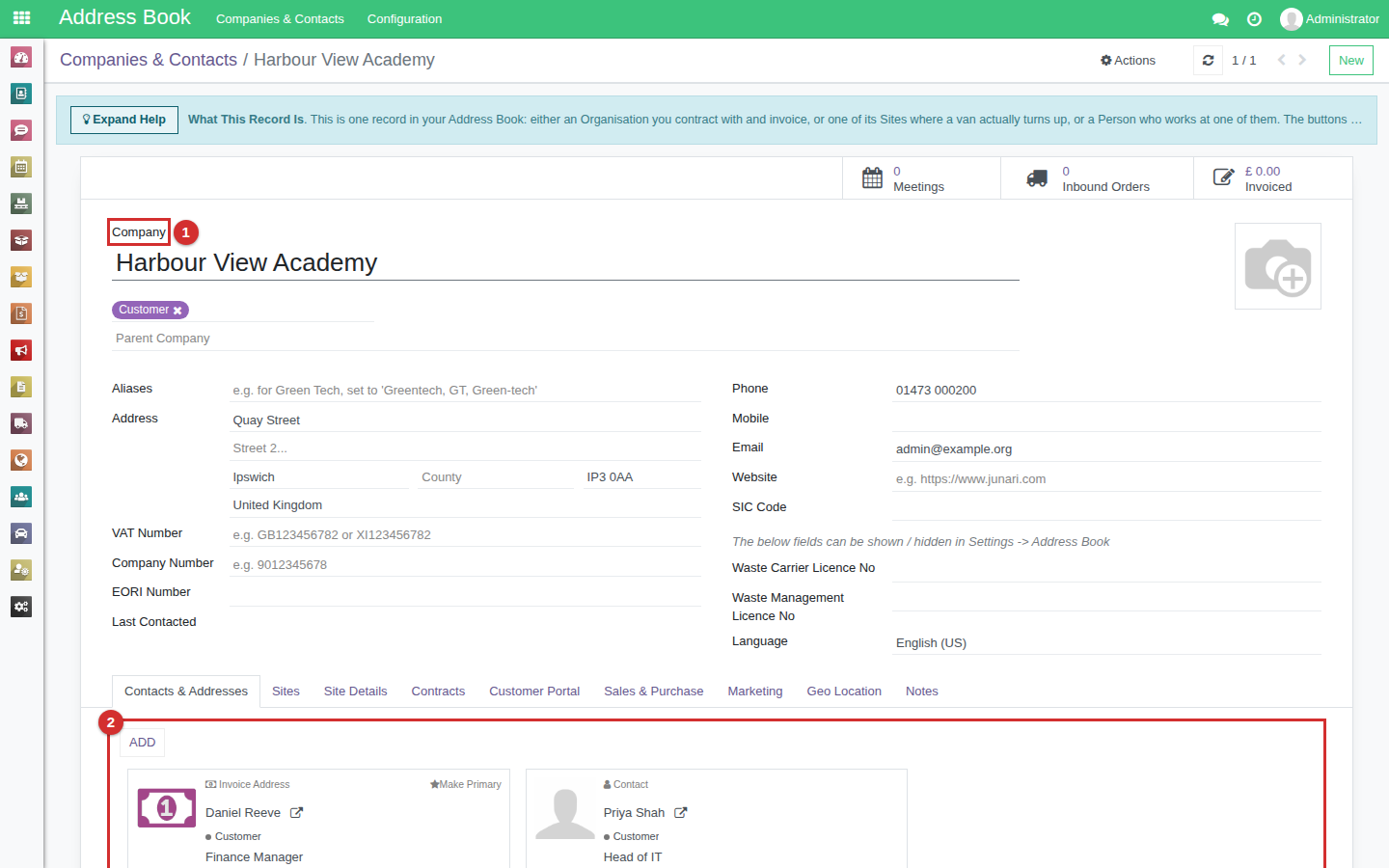
Once imported, the Company Type shows above the name (1), and both people are on the Contacts & Addresses tab (2), Daniel as the invoice address.
Worked example 3: a Company, a Site and a person at the Site
| Company Type | Name | Related Company | Tags | Job Position | Address Type | Street | City | |
|---|---|---|---|---|---|---|---|---|
| Company | Clayfield High School | Customer | office@example.net | Contact | 1 School Lane | Colchester | ||
| Site | Clayfield Theatre | Clayfield High School | Customer | Other Address | 3 Market Hill | Colchester | ||
| Individual | Jane Briggs | Clayfield High School, Clayfield Theatre | Customer | jane.briggs@example.net | Theatre Manager | Contact |
The Site belongs to the school, so its Related Company is "Clayfield High School". Jane works at the theatre rather than the main school, so her Related Company is the Site's full name: the Company, a comma and a space, then the Site - "Clayfield High School, Clayfield Theatre".
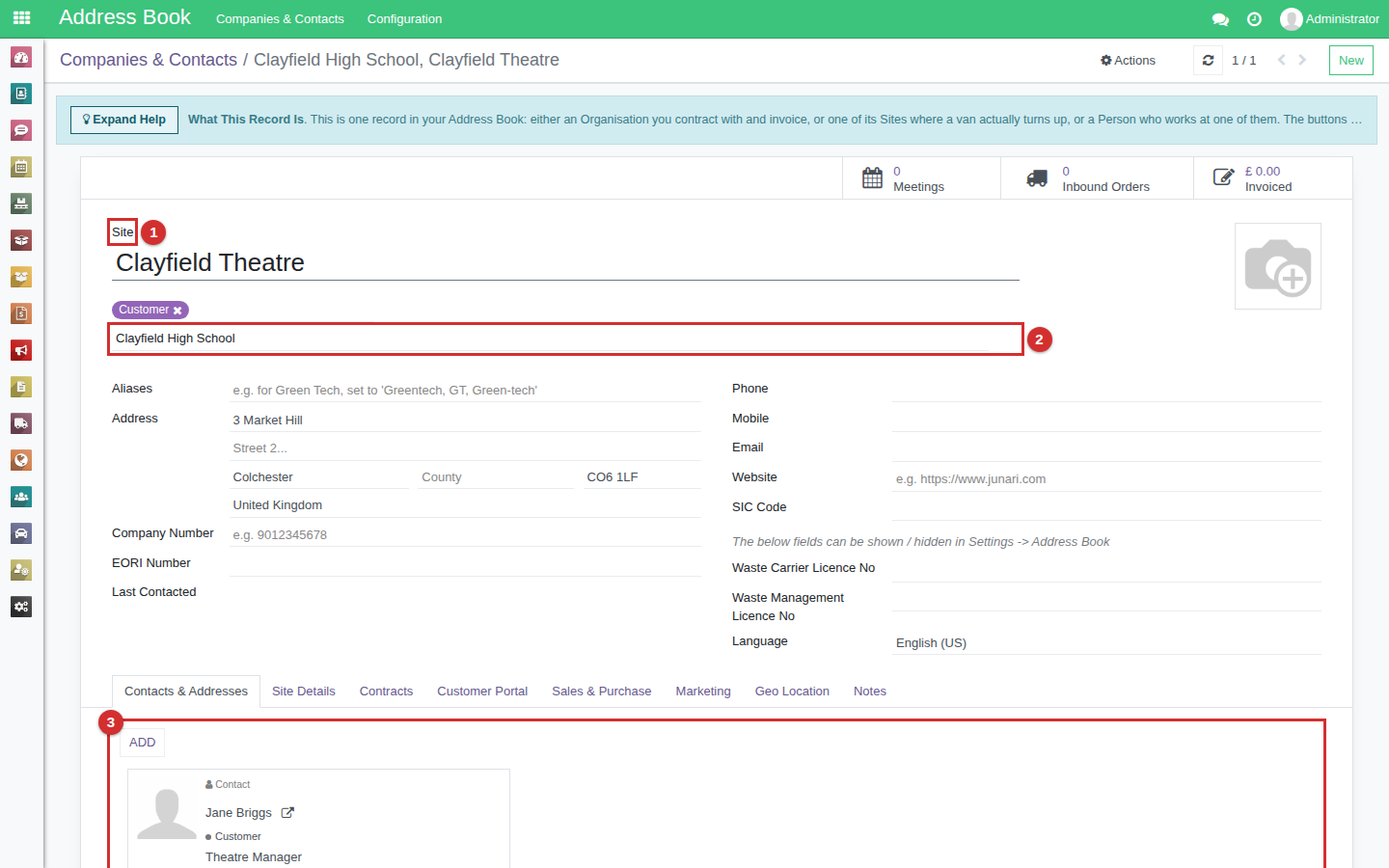
Once imported, the Site shows Site above its name (1) and its Company below (2), with Jane on its Contacts & Addresses tab (3).
Importing the file
All three examples can go in one file, as long as each Company's row comes above the rows that link to it, and each Site's row above the people at that Site. The file is read from the top, so a Related Company further down cannot be found yet.
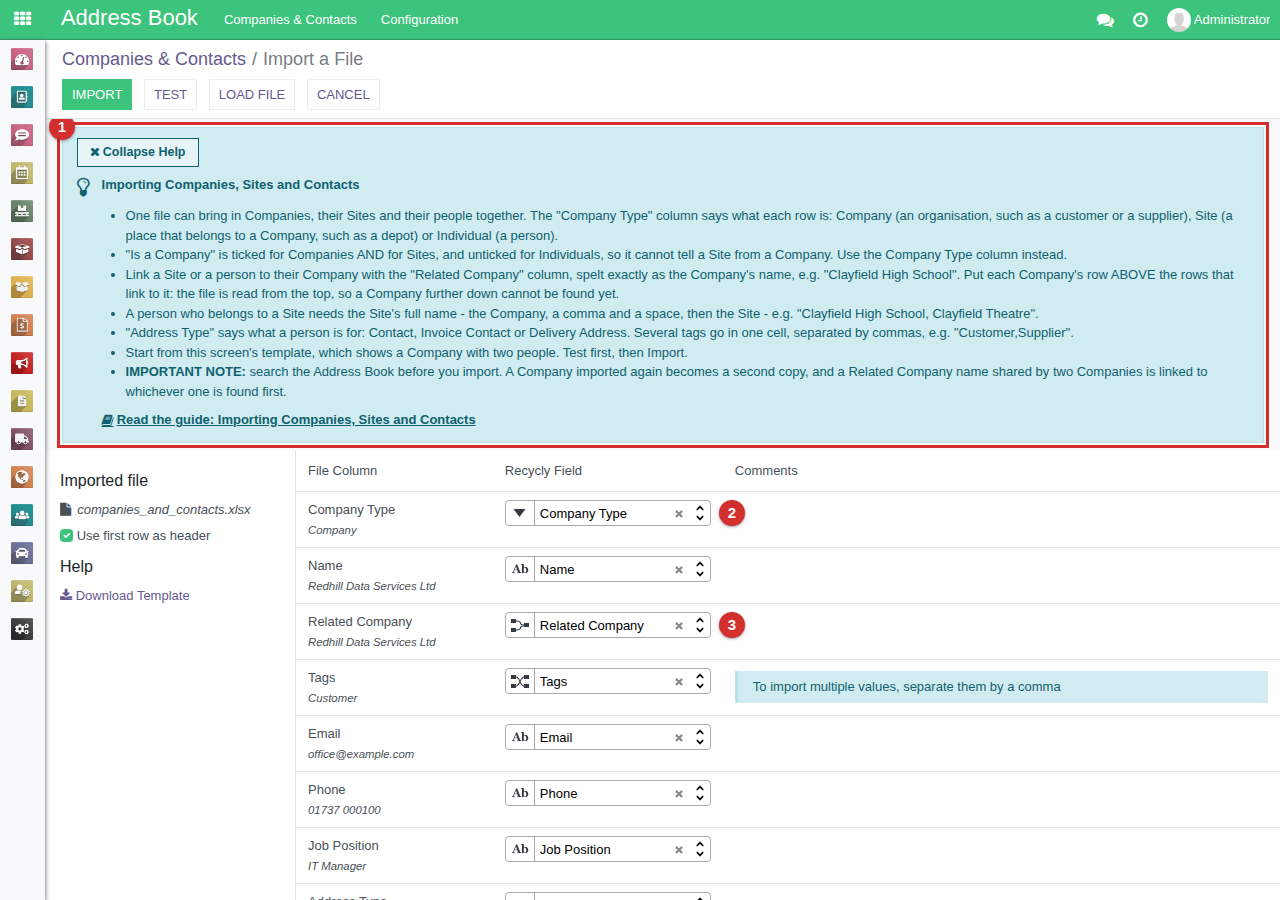
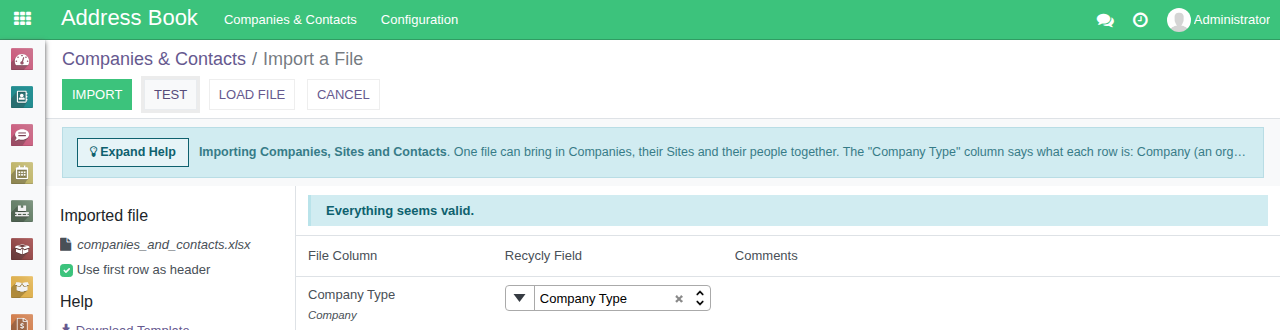
Load the file on Address Book > Companies & Contacts > Import. The help panel at the top (1) sums up these rules, and Company Type (2) and Related Company (3) are matched to their fields for you.
Click Test. When it says Everything seems valid., click Import.
Duplicates
- Search the Address Book before you import. A Company already in RecyclyERP that is in your file again becomes a second copy of itself.
- Adding people to a Company that is already in RecyclyERP? Leave the Company's own row out. Give each person the Company's name in Related Company, spelt exactly as it is on screen.
- "Found multiple matches" in a Test means two records in RecyclyERP have the name in your Related Company column. The row is linked to whichever one is found first, so rename or archive the duplicate before you import.