Scrap is for items you are writing off: damaged, worthless or beyond repair, and being disposed of rather than resold. Scrapping an item in RecyclyERP moves its stock to a Scrap Location outside the warehouse, so it is no longer In Warehouse and can never be sold, and marks its Scrap processing as Completed. Nothing is archived: a scrapped item stays on the system, on your customer's portal and reports, and in your ESG figures.
This guide covers your scrap locations and the Scrap Handling settings, scrapping items from an item or from the Items & Lots list, what stops a scrap, finding scrapped items, moving items into or out of scrap by hand, and putting an item back if it was scrapped by mistake.
1. Scrap locations: outside the warehouse and inside it
A location is a scrap location when Is a Scrap Location? is ticked on it, under Inbound > Configuration > Logistics & Inventory > Locations. There are two kinds, and they behave differently:
- A scrap location outside the warehouse: a virtual one, with Location Type Inventory Loss. RecyclyERP includes one, Virtual Locations/Scrap. Items moved there have been written off: they are no longer In Warehouse and can never be sold, reserved or added to an Outbound Order, whatever that location's own Outbound Orders tick says. This is where Scrap & Remove from Stock puts them.
- A scrap area inside the warehouse: an ordinary Internal location with Is a Scrap Location? ticked, for somewhere scrap waits to be collected. Items there are still In Warehouse, and whether they can be sold follows that location's Allow items/lots in this location to be available for Outbound Orders tick.
Ticking Is a Scrap Location? turns Allow items/lots in this location to be available for Outbound Orders off for you, because written-off stock is not sold. You can tick it back on if you genuinely sell from that location. In the Setup Assistant, Set up / Configure Scrap Location(s) under Warehouse Configuration opens the Locations list for this.
"Scrap" here means written off. Commodities you sell, such as circuit boards, cable or scrap metal, belong in an ordinary location, not a scrap location.
2. The Scrap Handling settings (administrators)
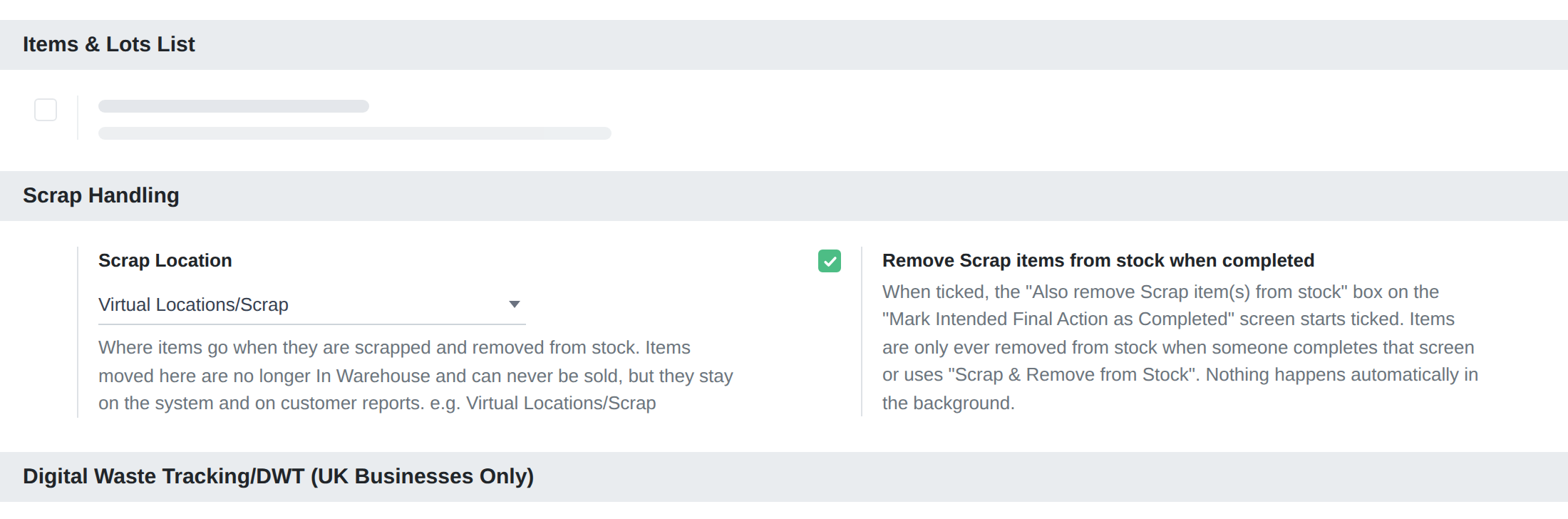
Two settings sit under Users & Settings > Settings > Inbound > Scrap Handling, directly below Items & Lots List. Each company in your system keeps its own.
- Scrap Location: where items go when they are scrapped and removed from stock. It offers only scrap locations outside the warehouse, and starts as your company's own Virtual Locations/Scrap.
- Remove Scrap items from stock when completed: when ticked, the Also remove Scrap item(s) from stock box on Mark Intended Final Action as Completed starts ticked (see section 6). Items are only ever removed from stock when someone completes that screen or uses Scrap & Remove from Stock. Nothing happens automatically in the background. A new company starts with it ticked; a system that was already running when scrap handling arrived starts with it unticked, so nothing changed until you chose to.
3. Scrapping items: Scrap & Remove from Stock
There are two ways in:
- One item: open it and click Scrap & Remove from Stock at the top, after Receive into Warehouse. It only shows while the item is In Warehouse, and it is green when the item's Intended Final Action is a Scrap one.
- Several items: on Items & Lots, tick them and choose Action > Scrap & Remove Item(s) from Stock, directly below Change Item(s) Location, Package or Status. Items in different warehouse locations can be scrapped together, up to 200 at a time.
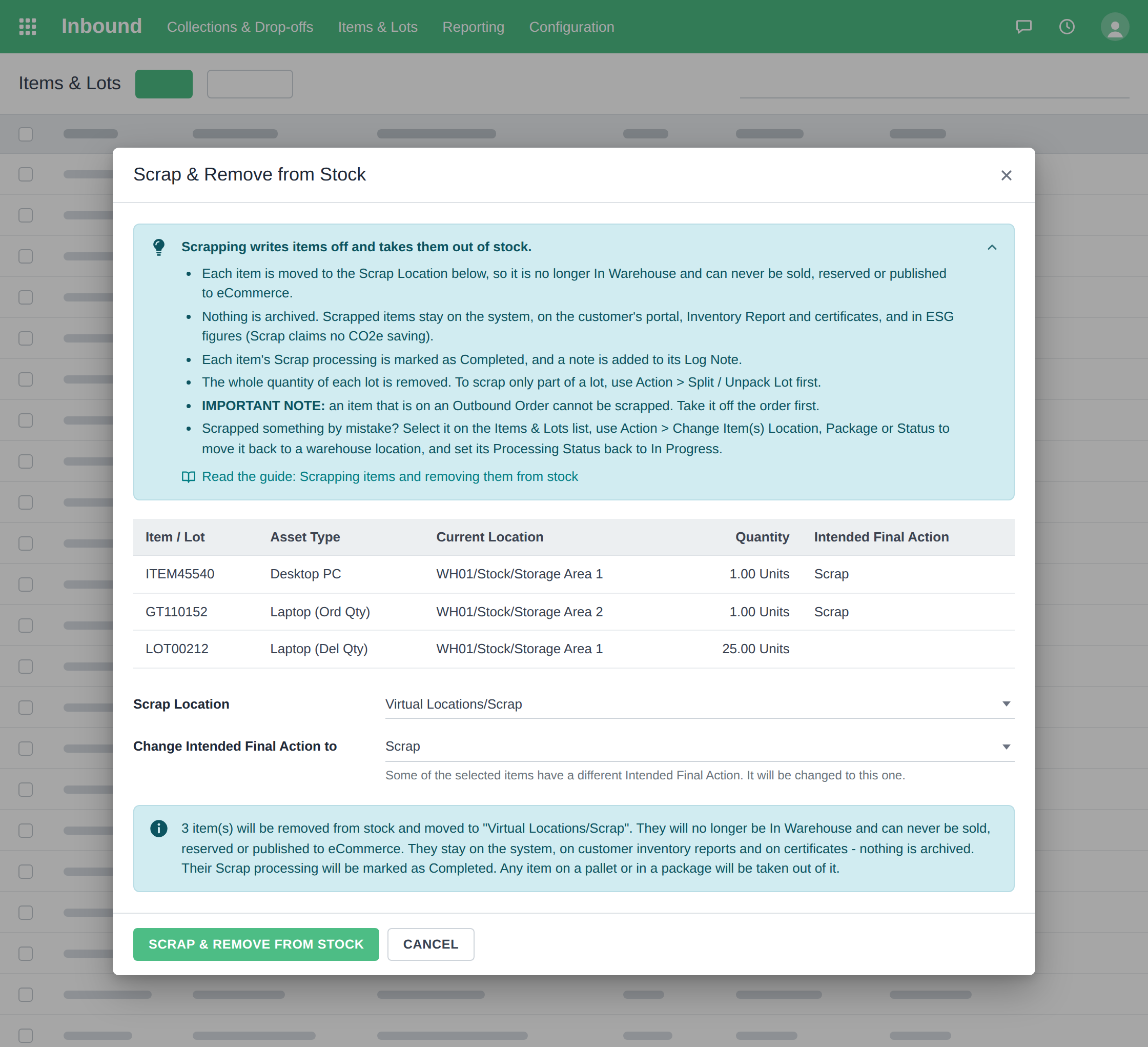
Either way the Scrap & Remove from Stock screen opens, and nothing changes until you confirm it. It lists each item with its Asset Type, Current Location, Quantity and Intended Final Action. A lot shows its whole quantity, for example "25.00 Units", because the whole lot is scrapped: to scrap only part of a lot, split it first with Action > Split / Unpack Lot.
- Scrap Location starts as the one in your settings, and can be changed to another scrap location outside the warehouse. A location inside the warehouse is never offered.
- Change Intended Final Action to only appears when some of the items have a different Intended Final Action, or none. It offers your Scrap-type final actions, and those items are switched to the one you pick.
- The blue box says exactly what will happen, with the number of items and the Scrap Location filled in.
- Yellow boxes below it are warnings that do not stop you: items on a draft Outbound quote, which will need updating, and items that may still contain sensitive data because their data has not been recorded as destroyed or erased. Make sure that data is destroyed before they leave your site.
Click Scrap & Remove from Stock at the bottom to confirm. For every item, all at once:
- its whole in-warehouse quantity, from every location it is in, moves to the Scrap Location, recorded as a standard scrap record with its own reference, for example SP/00001;
- it is taken off its pallet or out of its package, which stays where it is with its other contents;
- its Processing Status becomes Completed, with today's date and your name. An item that was already Completed keeps its original date and name;
- if Sell on eCommerce? was ticked, it is unticked, which takes the item off every store;
- a note in its Log Note says who scrapped it, where it moved from and to, and the scrap reference.
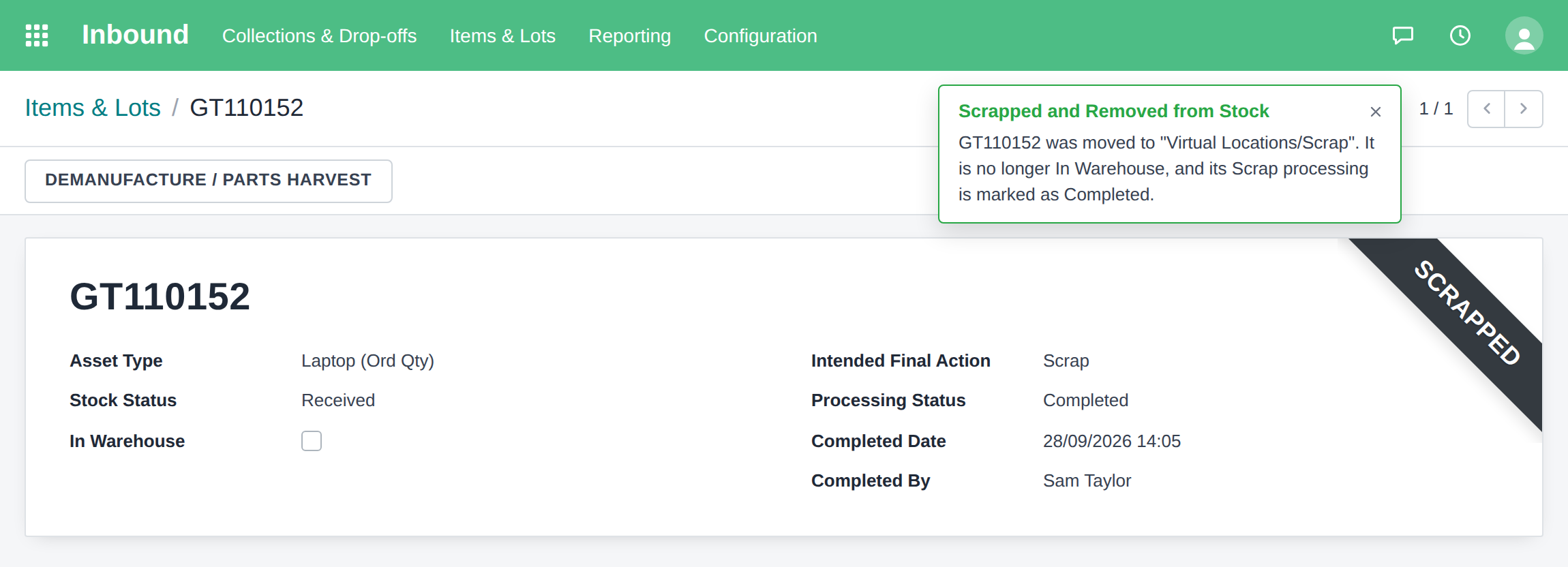
It is all or nothing: if anything fails for any item, nothing changes for any of them, and you are told why. The screen then closes and a green message in the top right corner, Scrapped and Removed from Stock, confirms what happened, naming the items and where they went.
4. What stops a scrap
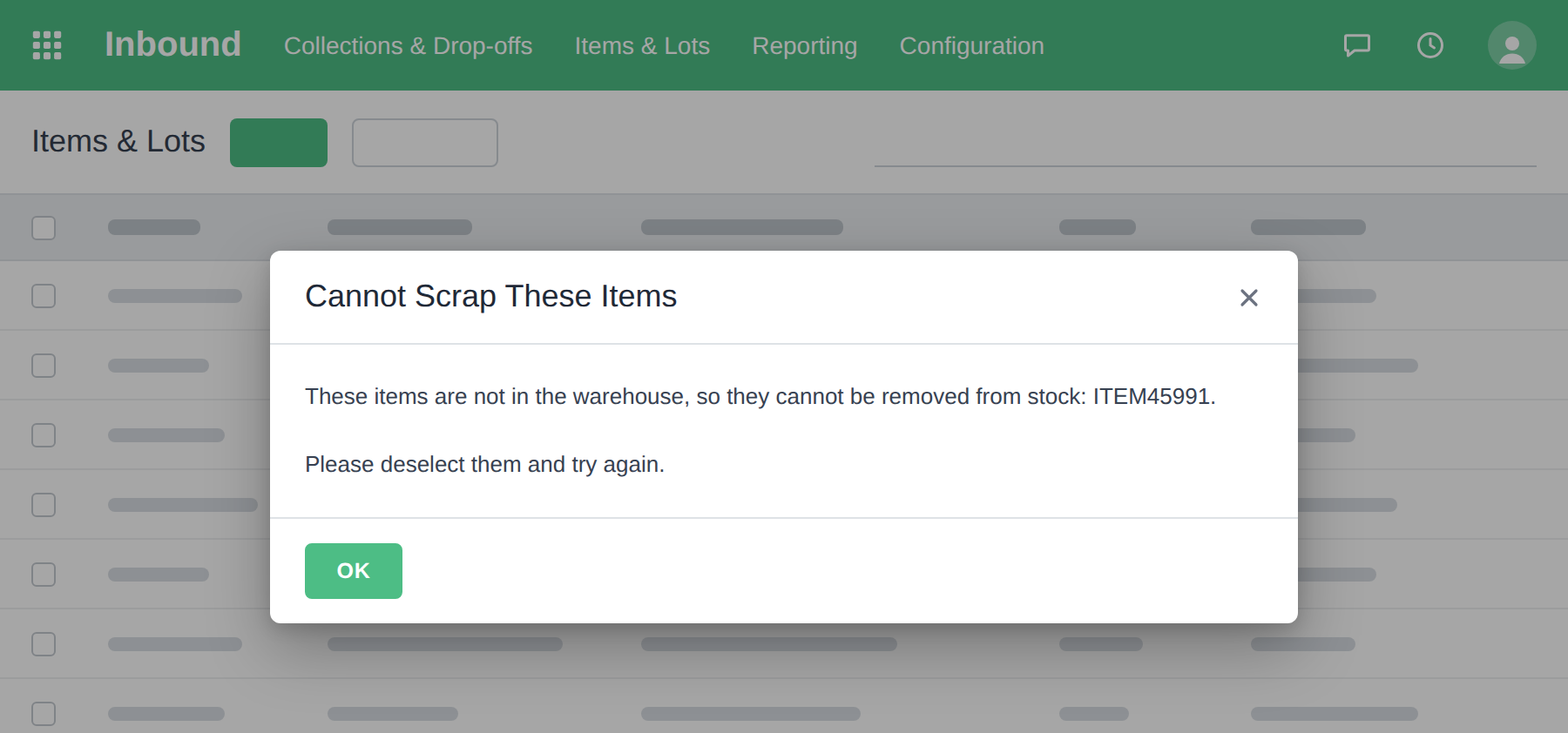
These are checked when the screen opens and again when you confirm, so a change made in between, such as an item being added to an order, is still caught. Any of them stops the whole run and nothing changes. The popup is titled Cannot Scrap These Items, names the items concerned, and says what to do on a line of its own:
- An item that is not In Warehouse: still Expected, already scrapped, sold, or a component. Deselect it and try again.
- An item on an open Outbound Order, promised to it or reserved on its delivery. Take it off the order first. An item reserved on an open delivery of an Inbound Order is named with that order and the delivery.
- Items belonging to more than one company. Scrap one company's items at a time.
- More than 200 items or lots at once. Select fewer.
- No Item Processing Action of type Scrap to switch items to. An administrator creates one under Inbound > Configuration > Hardware Auditing & Processing > Item Processing Actions, with Is a Final Action? ticked.
5. What a scrapped item looks like, and finding them
A scrapped item is no longer In Warehouse, its Location & Packaging tab shows the Scrap Location, its Stock Status stays Received and its Processing Status is Completed. A dark grey Scrapped ribbon sits in the top right corner of the item.
It still appears, exactly as before, on the customer portal's Items & Lots list and its spreadsheet download, the Inventory Report, the Data Erasure and Data Destruction Certificates, and the ESG dashboard and reports, where Scrap claims no CO2e saving. It stays in the Defra Digital Waste Tracking export for the day its load was received. Scrapping never archives an item.
It can never be added to an Outbound quote or order, by any route, and it is not offered on any eCommerce store or counted in any SKU's stock figures.
An item whose Scrap processing is Completed but which is still In Warehouse shows a yellow banner instead: "This item's Scrap processing is complete, but it is still in the warehouse. Once it has been physically scrapped, click "Scrap & Remove from Stock" above to take it out of stock."
Two filters on Items & Lots, in their own group below In Warehouse, find both kinds: Scrapped (Removed from Stock) and Scrap Completed - Still in Warehouse. Remove the default In Warehouse filter before using the first.
6. Completing Scrap actions in bulk: Mark Intended Final Action as Completed
On Items & Lots, Action > Mark Intended Final Action as Completed completes several items' Intended Final Actions at once. When any selected item has a Scrap action, is In Warehouse and is not yet Completed, the screen also shows Also remove Scrap item(s) from stock below Notes, ticked or not according to your Remove Scrap items from stock when completed setting.
With it ticked, Complete Action completes the actions exactly as before, then removes those Scrap items from stock with the same checks and steps as Scrap & Remove from Stock. Items with any other Intended Final Action are only completed. If a check stops the removal, nothing is completed and nothing moves, and the message tells you to untick Also remove Scrap item(s) from stock to complete the action without removing anything from stock.
7. Moving items into or out of scrap by hand
Action > Change Item(s) Location, Package or Status can move items anywhere, including into a scrap location or out of one. When the chosen Location would take items into scrap or out of it, clicking Change Item(s) Location, Package or Status first opens a popup: Moving Items Into Scrap, Moving Items Out of Scrap or Moving Items Between Scrap Locations. It says how many of each asset type are affected, why, from the two locations, and what will happen to them. Continue makes the move; Cancel takes you back to the screen with your choices kept. A move that does not go into or out of scrap asks nothing.
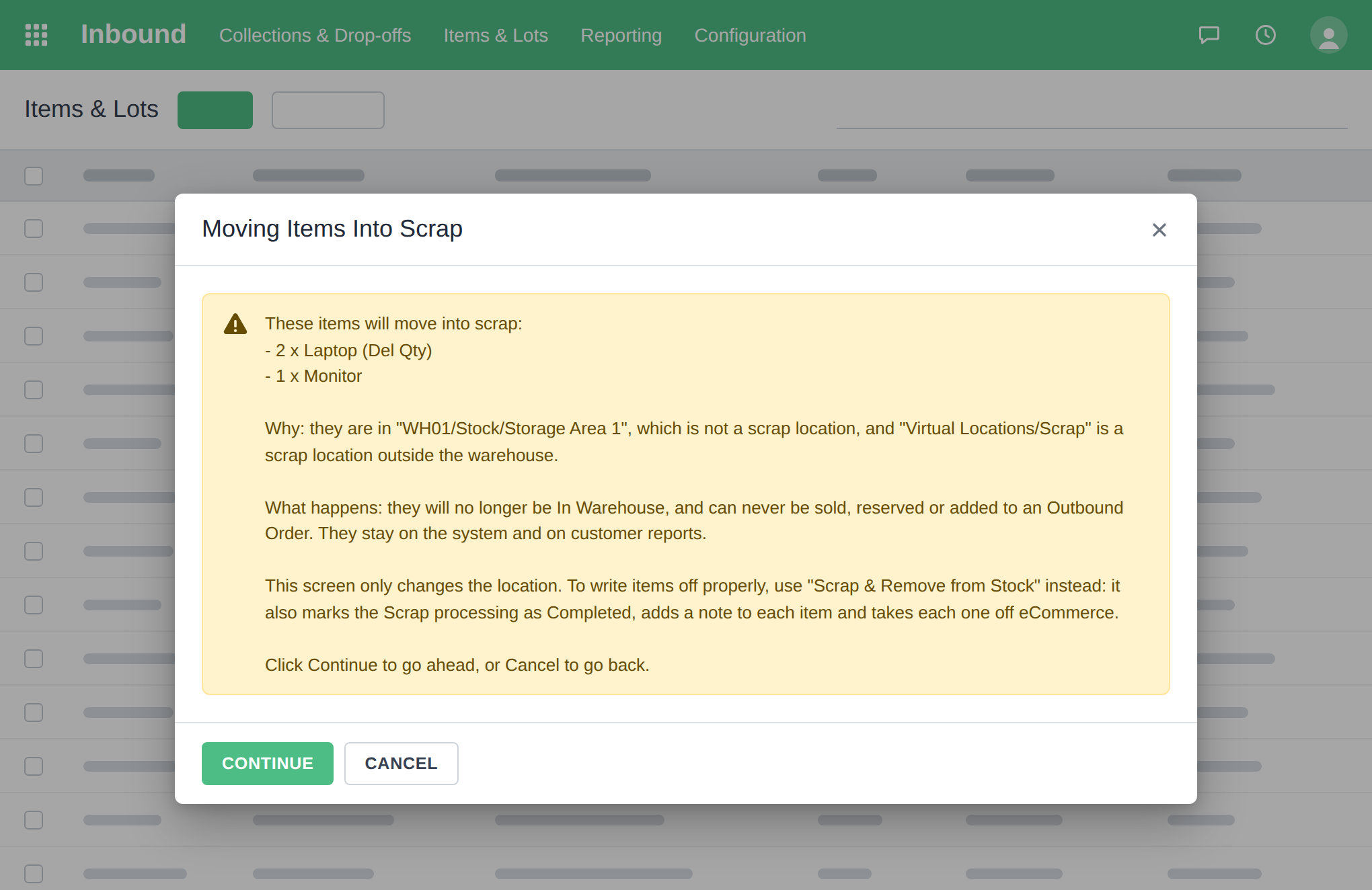
Moving items into a scrap location this way only changes their location. To write items off properly, use Scrap & Remove from Stock, which also completes their Scrap processing, notes it on each item and takes them off eCommerce.
8. Putting back an item scrapped by mistake
- On Items & Lots, remove the In Warehouse filter and tick the item. The Scrapped (Removed from Stock) filter finds it.
- Choose Action > Change Item(s) Location, Package or Status.
- Set Location to a warehouse location and New Processing Status to In Progress, then click Change Item(s) Location, Package or Status.
- The Moving Items Out of Scrap popup explains the move. Click Continue.
The item is In Warehouse again, the ribbon has gone, and it can be added to an Outbound Order. Sell on eCommerce? is not ticked again automatically: tick it yourself if you want to sell the item online.
Common problems
- There is no Scrap & Remove from Stock button on an item. It only shows while the item is In Warehouse. An Expected item, or one already scrapped or sold, has none.
- The Scrap Location I want is not offered. Only scrap locations outside the warehouse are offered, because scrapping takes items out of stock. To move items into a scrap area inside the warehouse, use Change Item(s) Location, Package or Status.
- A scrapped item is missing from Items & Lots. The list opens with the In Warehouse filter on, and a scrapped item is not In Warehouse. Remove the filter, or use Scrapped (Removed from Stock).
- An item on a quote stops nothing, but one on an order does. That is deliberate: a draft quote only warns, because it will need updating, while an open Outbound Order holds the item, so take it off the order first.