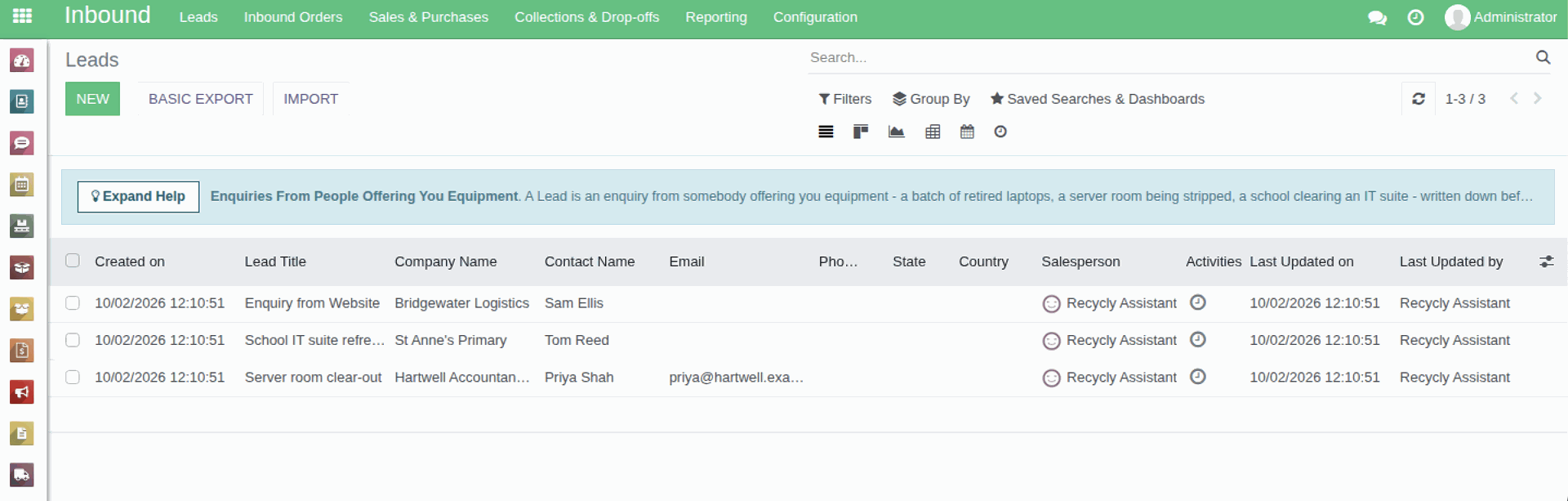
A Lead is an enquiry written down before it is firm work. RecyclyERP keeps two separate lists of them, one for each side of your business:
- Inbound > Leads holds people offering equipment TO you: a batch of retired laptops, a server room being stripped, a school clearing an IT (Information Technology) suite.
- Outbound > Leads holds people wanting to buy FROM you: refurbished laptops, a pallet of monitors, spares.
This guide explains what a Lead is for, where it goes when you convert it, how to work through a list of them, and the mistakes that most often lead to "my enquiry has disappeared".
1. Why enquiries are kept apart from your customers
Nothing typed on a Lead reaches your Address Book. The company and the people named on it stay as plain words until you convert the enquiry. That is what keeps a year of tyre-kickers and spam form fills out of the customer list your team relies on.
The two lists look identical but hold completely different work. Which side an enquiry belongs to is decided by the menu it was raised from, it only ever appears on that side's list, and it cannot be moved across later.
2. Where enquiries come from
- Your website. A visitor who fills in your Book a Collection form without being signed in raises an enquiry on Inbound > Leads. It is named after their company, or "Enquiry from Website" if they gave none, its source is "Website Booking Form", and it is deliberately left with no Salesperson so that somebody has to pick it up.
- A signed-in customer. A customer who was signed in when they booked never appears on Leads at all. Their booking goes straight to Inbound > Inbound Orders > Inbound Orders as a job.
- Everything else - a phone call, an email, a hand-over at a trade show - you raise yourself with New on the list for the right side.
The website form never puts anything on Outbound > Leads.
3. Working through the list
- Open Inbound > Leads or Outbound > Leads.
- Start with the enquiries nobody has picked up: tick Unassigned in the search box, or use Group By > Salesperson.
- Open an enquiry and put your own name on it.
- Set Lead Type first. With "Business" a Company Name is compulsory; with "Individual" a Contact Name is. You are only told when you try to save. Switching to "Individual" hides the boxes that only make sense for an organisation, such as Company Phone and No. IT Seats, but it does not empty them: anything you typed comes back when you switch back.
- Fill in what you know. Everything on an enquiry is safe to change right up to the moment you convert it, because until then it affects no other record in the system.
On an inbound enquiry, the Expected Items tab is what the customer says they have. A brand new enquiry arrives with Asset Type rows already on it at a quantity of zero, so delete the ones they have not actually got. Booking Form Answers and Site Access Details only appear when the enquiry came from your website, and they hold the customer's own words, read-only.
On an outbound enquiry, use the Lead Details tab to write what they actually want, in enough detail that whoever picks it up next does not have to ring and ask.
On both, the Extra Info tab records where the enquiry came from, which is what tells you later which of your marketing brings work in.
4. Converting an inbound enquiry into a job
When it is real work, open the enquiry and click Qualified: Convert to Draft Inbound Order. A short window asks three things:
- whether this is a brand new customer or one you already deal with;
- whether this is a new job, or more items for a job that is already open;
- who the Account Manager should be.
It then builds a draft job under Inbound > Inbound Orders > Inbound Orders.
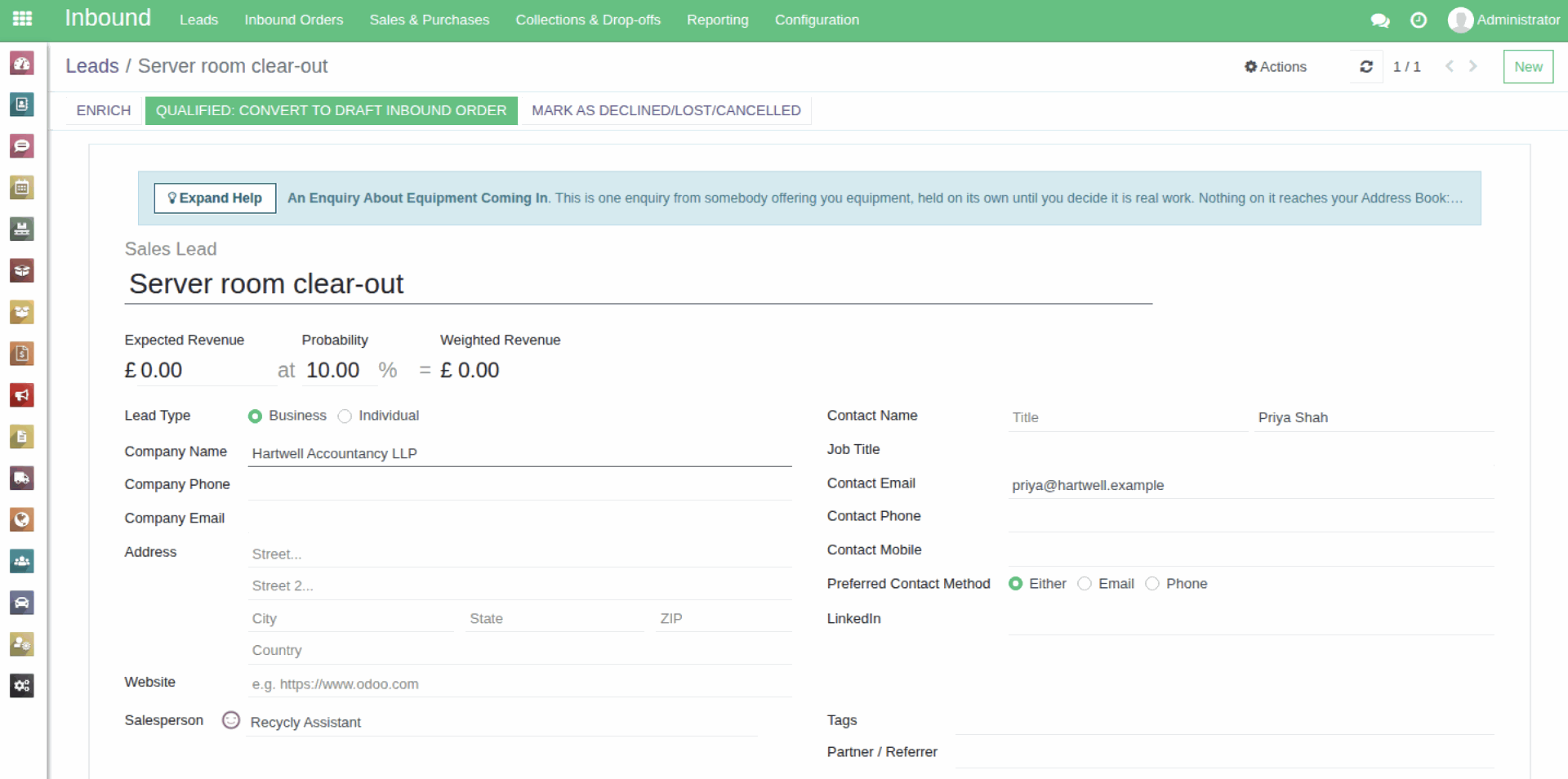
What travels into a new job: the expected items, the customer's booking form answers and site access details, the Campaign, Medium and Source Type, the Expected Revenue and Probability, the Preferred Contact Method, the Tags, and the notes, attachments and planned activities on the enquiry.
What travels when you merge into a job that is already open: the items, the booking form answers, and the notes, attachments and planned activities.
The Additional Details box on the Expected Items tab does not travel either way. Anything in there that has to survive belongs on a line of its own, or in a note on the enquiry.
5. Converting an outbound enquiry into an Opportunity
When it is worth quoting, click Qualified: Convert to opportunity. A short window asks whether to create a new customer, link to one you already deal with, or not link to a customer at all, and who to assign it to.
The same record then carries on as an Opportunity under Outbound > Opportunities, keeping everything written on it, and quotes are raised from there. The stages an Opportunity moves through are yours to set at Outbound > Configuration > Leads & Opportunities > Opportunity Stages.
6. Declining an enquiry
Click Mark as Declined/Lost/Cancelled. You have to give a reason. The enquiry is then archived, not deleted, so it drops out of the list. To find it again, tick Declined/Lost/Cancelled or Archived in the search box, and bring it back with Restore.
7. Mistakes to avoid
- "My enquiry has disappeared." A converted enquiry leaves the Leads list. It has not been lost. An inbound one is now the Inbound Order, with everything on it. An outbound one is the same record, now under Outbound > Opportunities - not a copy.
- The wrong side of the business. If somebody offering you equipment was raised from Outbound > Leads, the enquiry shows "Qualified: Convert to opportunity" rather than the convert-to-job button, and it will never appear on Inbound > Leads. The side cannot be changed, so raise it again from Inbound > Leads.
- Walking away from the draft job. If you convert an inbound enquiry, open the pre-filled draft job and leave without saving it, no job has been created and the enquiry is still there. One thing does survive: if you chose to create a new customer, that customer was created the moment you clicked the button. Look for them in your Address Book before you convert again, or you will end up with two.
8. Related guides and screens
- The Address Book: Companies, Sites and Contacts (opens in a new tab) - where converted customers end up.
- Inbound > Inbound Orders > Inbound Orders - jobs created from inbound enquiries.
- Outbound > Opportunities - outbound enquiries after conversion.