The Address Book, at Address Book > Companies & Contacts, is your one list of everyone your business deals with: the customers whose IT (Information Technology) equipment you take away, the suppliers and manufacturers you buy from, the couriers who move loads for you, the councils you report to, and the named people who work at each of them.
This guide explains the three kinds of record, where each one is used, how to set a new customer up properly, and the few decisions that are hard to undo.
1. Companies, Sites and Individuals
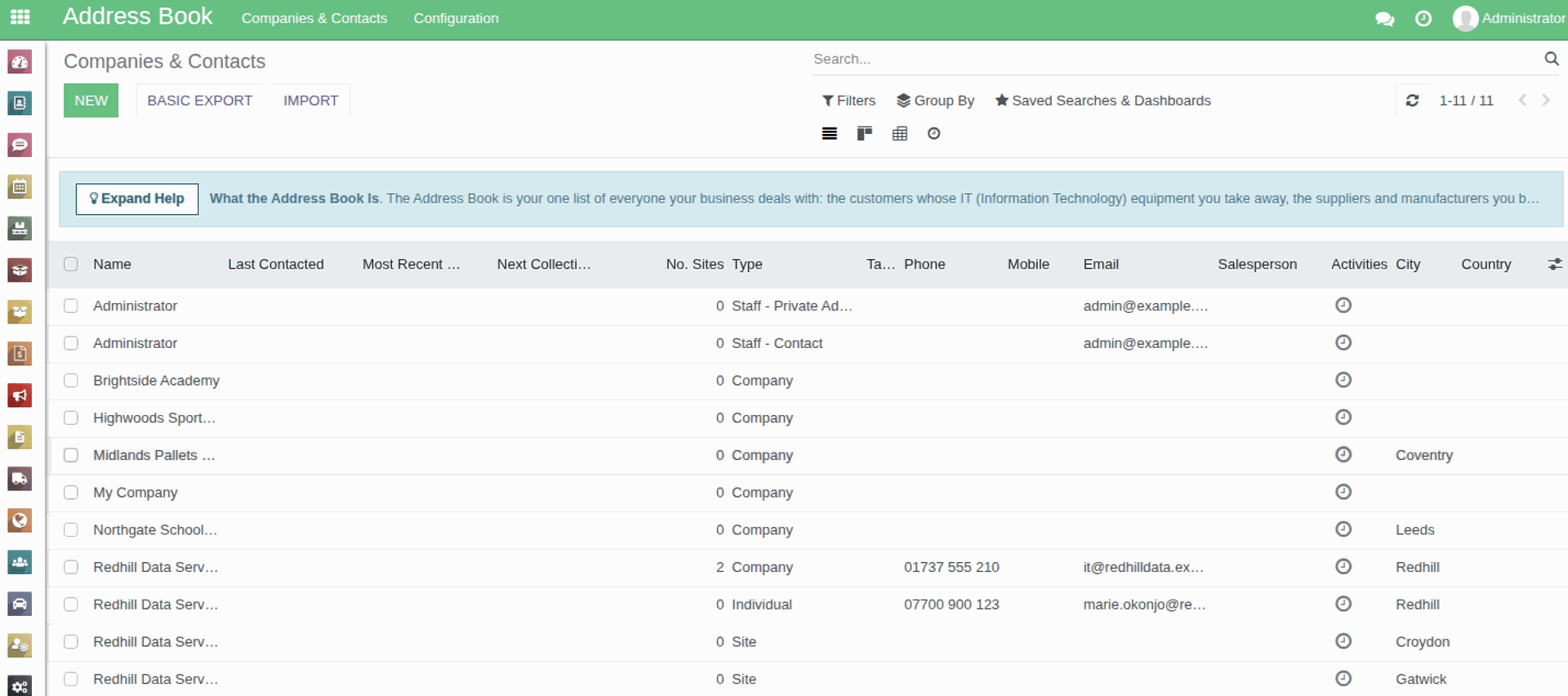
Every record is one of three kinds. You choose which with the Individual, Company and Site buttons at the top of a new record, and the Type column on the list shows it:
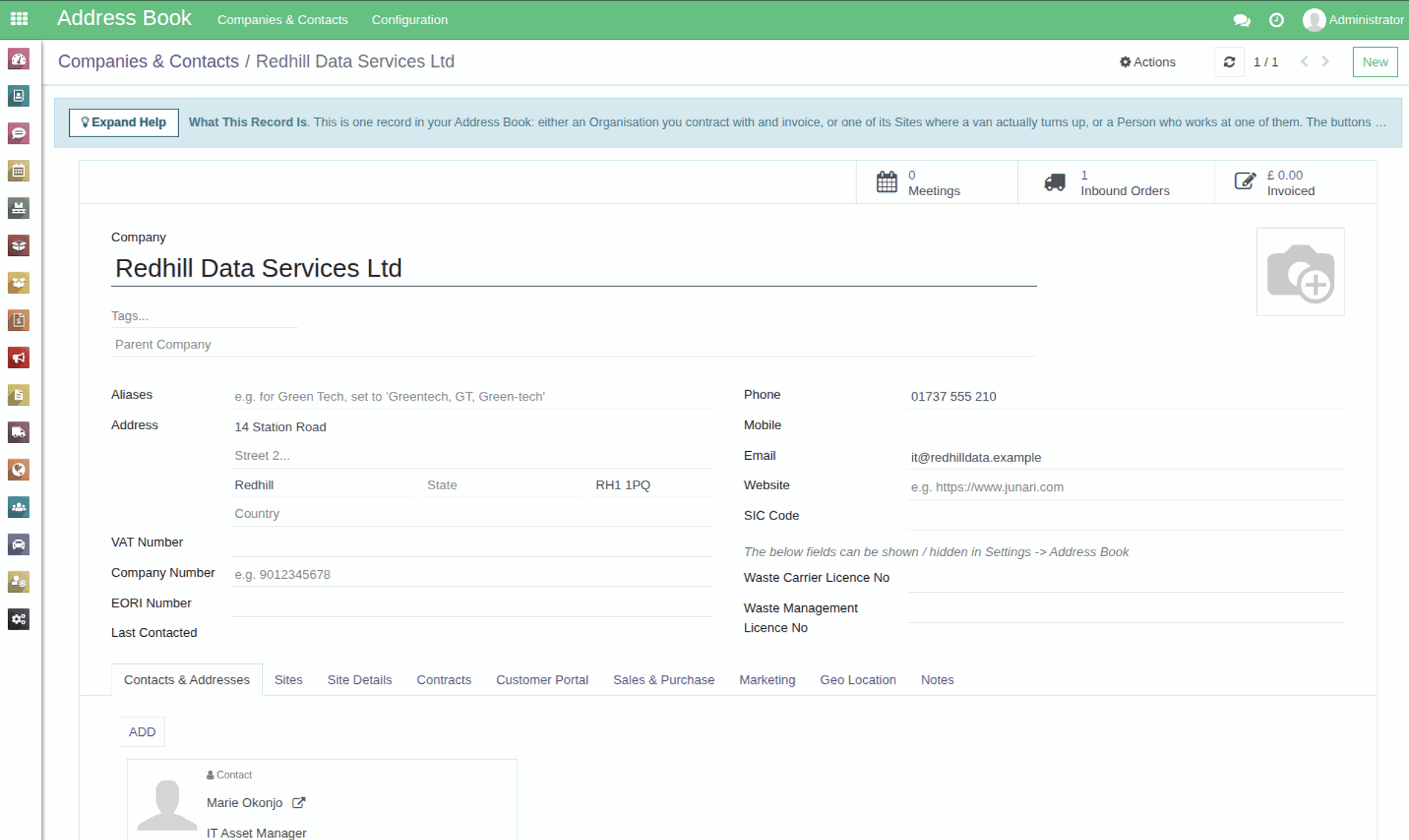
- A Company is the organisation you contract with and invoice, for example Redhill Data Services Ltd.
- A Site is one of its buildings, and it is where a van actually turns up, for example Redhill Data Services - Croydon.
- An Individual is a named person who books collections, signs for loads or receives paperwork, for example Marie Okonjo, IT Asset Manager.
The Company box on a record is what joins them together: a Site is put under its company, and a person normally is. A customer with eleven offices is one Company and eleven Sites, not eleven customers.
The Type column also shows what a record is used for where that applies, for example "Company - Delivery Address".
2. Where these records are used
- As the customer and the collection site on Inbound > Inbound Orders > Inbound Orders.
- As the delivery address on Outbound > Quotes & Sales Orders.
- As the customer on the standing terms held in Inbound > Inbound Orders > Contracts.
- On the "Duty of Care Document", the transfer notes and the certificates you print.
- The Site Details tab is what the crew is shown for a collection from that place.
While a collection is still open it shows the site's details as they stand now, so correcting them here corrects that collection too. The details freeze when the collection is completed, so a finished collection keeps what was true on the day. A record that is wrong here is therefore wrong on everything still to come.
3. Setting up a new customer
- Open Address Book > Companies & Contacts.
- Search for the organisation first. Typing a new name where you meant to pick an existing one is how the same customer ends up in here twice, with half the history on each copy.
- Click New and choose Company. Fill in the name, the address and the phone numbers.
- Add the people on the Contacts & Addresses tab.
- Add the buildings on the Sites tab.
- Fill in Site Details before the first collection from a place, not on the morning of it.
The other tabs explain themselves when you open them: Contracts for standing terms, Customer Portal for what the customer sees when they sign in (shown on an organisation, only while the ESG - Environmental, Social and Governance - feature is switched on), Sales & Purchase for trading and returns terms, and Marketing for what they have agreed to be contacted about.
4. Finding your way round the list
- The Companies and Sites filters show organisations or buildings on their own; group by Type to see all three kinds split out.
- Staff is a separate filter and shows your own employees, not customer contacts.
- No. Sites counts the buildings under an organisation, and Most Recent Collection Date and Next Collection Date show at a glance who you are actually working with.
5. Optional boxes and codes
Some columns and boxes only appear once an administrator switches them on: Customer Code, Annual Turnover, Hazardous Waste Premises Code, No. of Employees, Local Council and No. IT Seats each have their own tick at Users & Settings > Settings > Address Book, under "Address Book - Optional Fields". Territory comes with the Territories feature. A box you expected and cannot find has usually never been turned on.
The two codes have rules:
- Customer Code has a maximum length, four characters unless an administrator has changed it.
- Hazardous Waste Premises Code has to be exactly six characters.
- Both are turned into capitals as you type and must be different from every other record's.
- The Generate button beside each builds one from the record's name. It only shows while the box is empty, so to build a fresh code, clear the box and the button comes back.
6. Changing and archiving records
Names, addresses, phone numbers, tags, codes and site details are safe to change at any time. Changes apply from now on, and anything already printed keeps what it was printed with.
A customer you no longer serve is archived rather than deleted: select them and use Actions > Archive. That takes them out of the lists and dropdowns while leaving their collections, contracts and paperwork intact.
7. Mistakes to avoid
- Choosing the wrong kind of record. Individual, Company and Site are only offered while the record is new. After the first save the kind is shown but cannot be changed, so the wrong choice means deleting the record and starting again.
- Setting a company on a contact by mistake. Putting a company on a contact, or moving them to a different one, copies that company's address onto the contact. Moving a contact who already had a company warns you first; setting one for the first time does not, and the address is quietly replaced. If you were only correcting a typo, use Discard rather than Save.
- Moving a person who changed jobs. Somebody who has genuinely moved to a new employer needs a new contact under that employer, so their history stays with the job they did it in.
- A Site saved on its own. Nothing stops you saving a Site with no organisation, but it will then not show on that organisation's Sites tab.
8. Related guides
- Ad-Hoc Addresses: one-off collection and delivery addresses (opens in a new tab) - for places you will only ever go to once.
- Importing Companies, Sites and Contacts (opens in a new tab) - loading many records at once.