Sometimes items that came in on a collection or drop-off have to go back: the customer wants them back, they were collected by mistake, or a supplier's delivery was wrong. RecyclyERP sends them back on a send-back transfer, which you check and then confirm. Nothing needs scanning out.
This guide is for warehouse staff, and for the stock managers who can undo a send-back. It covers collections, drop-offs and deliveries on jobs raised from a purchase order.
This is not a customer return. For items a customer is sending back to you, use Outbound > Returns.
1. When to use Send Items Back
- The collection or drop-off has been received (it reads Processed), and some or all of its items are going back to the customer.
- On a delivery for a job raised from a purchase order, the button reads Send Items Back to Supplier and everything below says supplier instead of customer.
- The button only shows while something from the collection or drop-off is still in your stock and not already on a send-back transfer.
2. Choosing what goes back
Open the collection or drop-off under Inbound > Collections & Drop-offs and click Send Items Back to Customer. A pop-up of the same name opens.
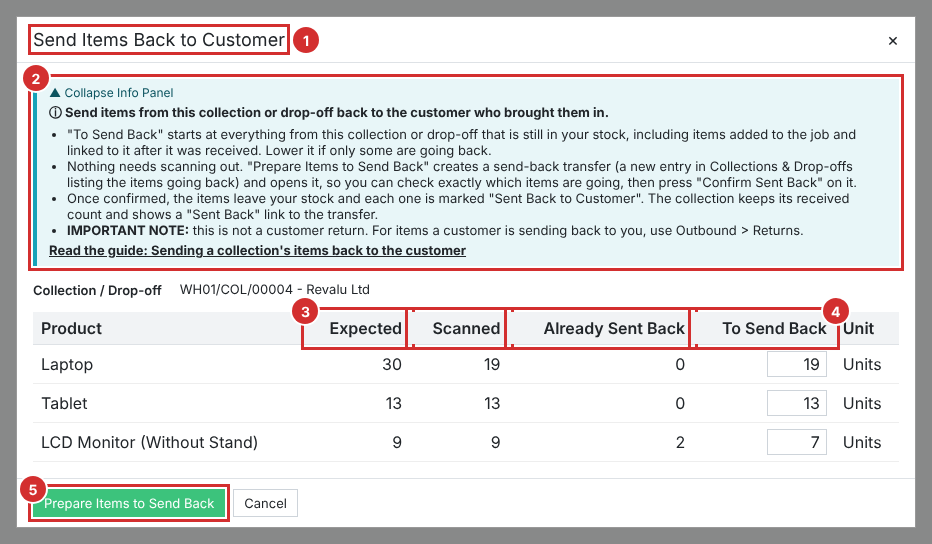
- Expected: how many of the product the collection or drop-off expected.
- Scanned: how many were booked in, including items added to the job and linked to the collection afterwards.
- Already Sent Back: how many are already on send-back transfers from it, including ones not confirmed yet.
- To Send Back: how many go back this time. It starts at everything still in your stock, and it is the only figure you can change. Lower it if only some are going back.
Asking for more than can still go back is refused, and the message says how many of each product can. Items no longer in your stock (sold, scrapped, taken apart or already sent back) are never offered, and nor is an item reserved on another transfer such as an outbound delivery.
If an item is on a purchase order that pays the customer for it, the pop-up warns you and names the order. You can still go ahead; the order itself does not change.
Press Prepare Items to Send Back. Nothing leaves your stock yet.
3. Checking and confirming the send-back transfer
The send-back transfer opens straight away. It is a new entry in Collections & Drop-offs under its own reference, and a notice at the top names the collection it came from.
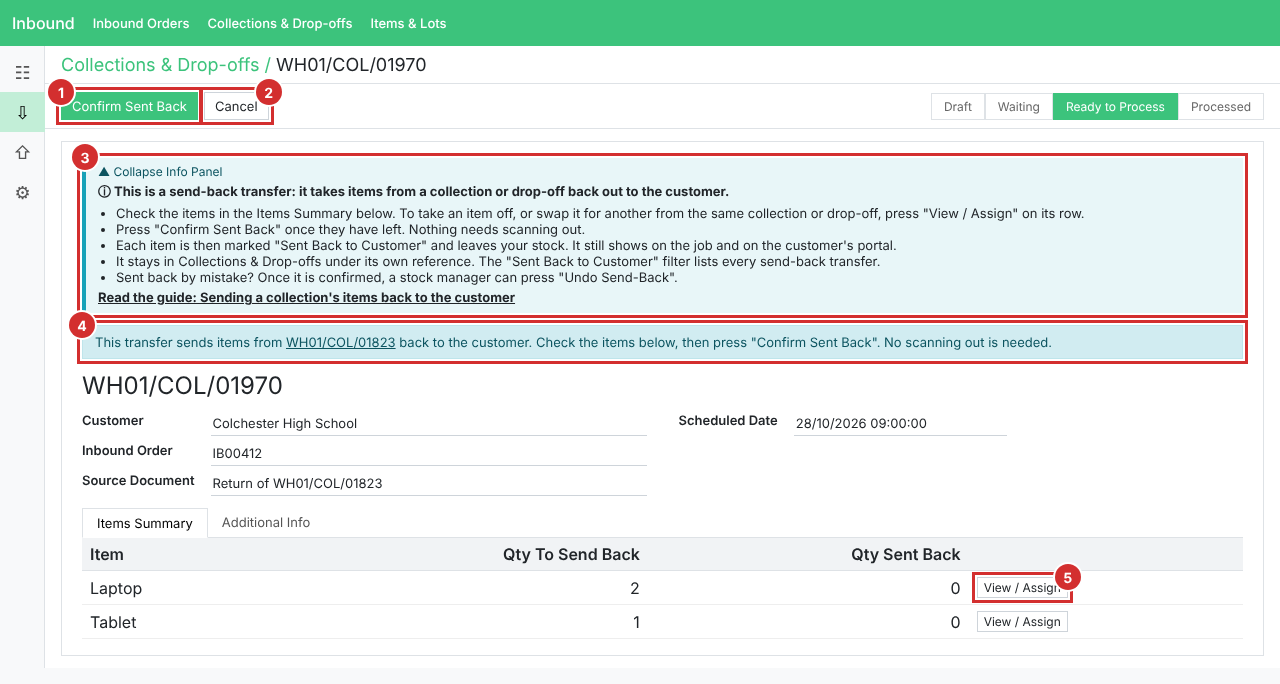
- The Items Summary shows Qty To Send Back and Qty Sent Back (0 until it is confirmed).
- To take an item off, or swap it for another from the same collection or drop-off, press View / Assign on its row. Taking an item off lowers Qty To Send Back to match. Only the collection's own items can be added.
- When the items have left, press Confirm Sent Back, then Send Back Reserved Items in the window that opens. Date/Time Sent Back then shows when it was confirmed.
- Changed your mind before confirming? Cancel it. Nothing leaves your stock, and you can start again from the collection later.
Nothing can be booked in, signed for at the warehouse or given a Waste Transfer Note on a send-back transfer. The Sent Back to Customer filter in Collections & Drop-offs lists every send-back transfer, supplier ones included.
4. What the items and the collection show afterwards
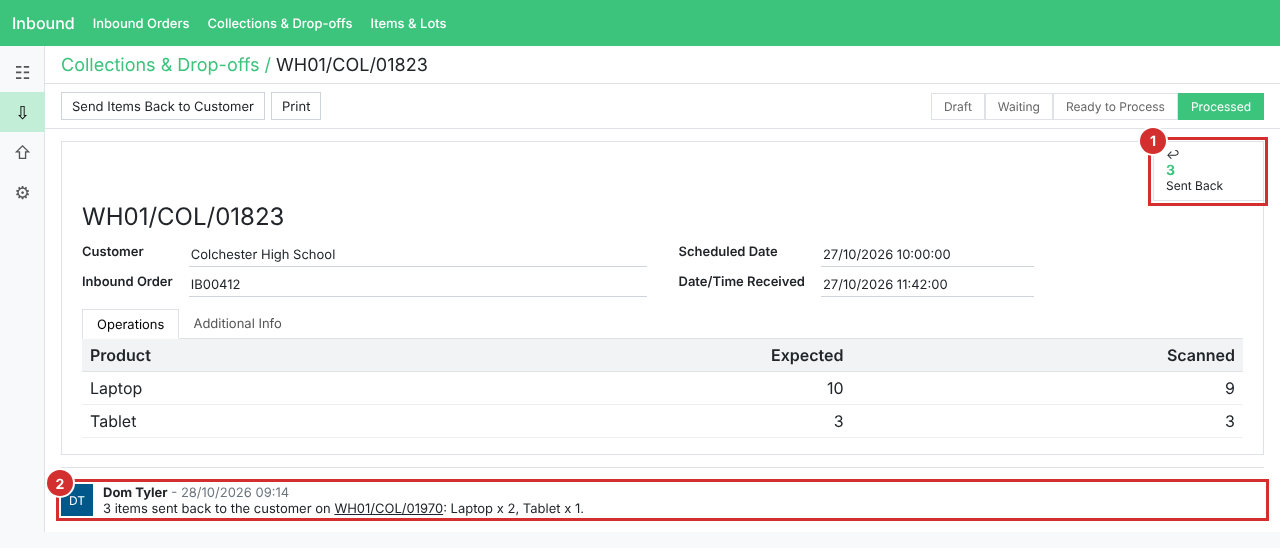
- The collection or drop-off gains a Sent Back button counting the items that went back; click it to see the send-back transfers. A log note lists what went back, with a link to the send-back.
- The collection keeps its received count, and the job keeps counting the items as received. Invoicing on items received still counts them; invoicing on items processed does not.
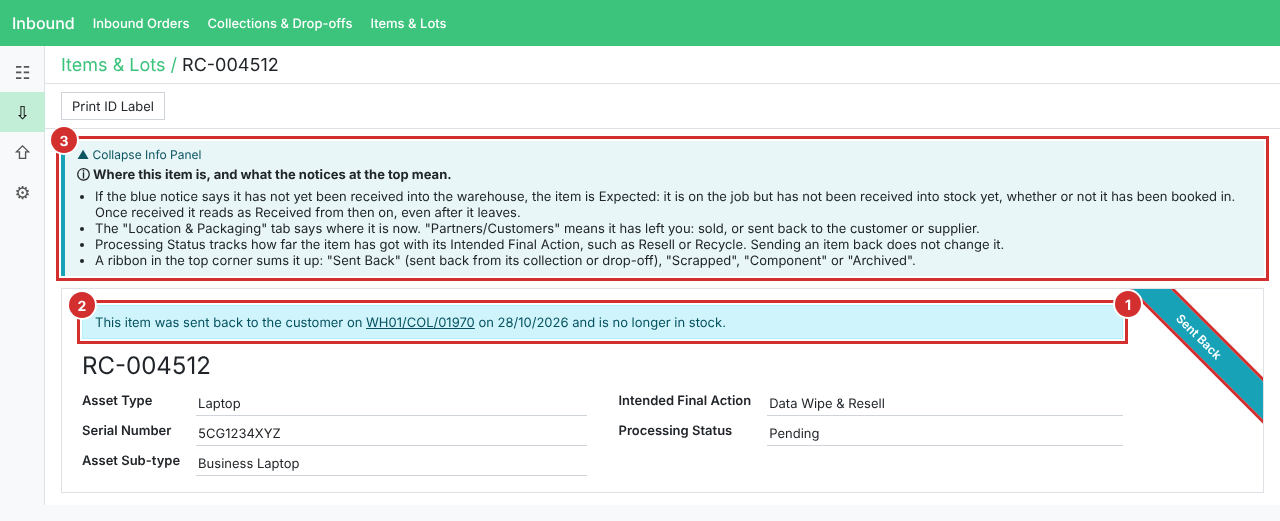
- Each item is marked Sent Back to Customer (or Sent Back to Supplier). Its Stock Status stays Received. A blue Sent Back ribbon and a notice naming the send-back show on the item.
- Find them under Inbound > Collections & Drop-offs > Items & Lots with the Sent Back to Customer filter. The default In Warehouse filter hides them.
- A sent-back item cannot be added to an outbound quote or order, and its Customer Payout is never locked in automatically. An administrator can still recalculate it, after ticking a box to confirm they know it went back.
- A lot only partly sent back (for example 20 of 55 kg) stays in stock and is not marked until the rest goes back.
5. What the customer sees
- Sent-back items still show on the customer's job on their portal, with their Status reading Sent Back to Customer.
- Send-back transfers do not appear in the customer's collections lists.
- Their Service Review counts the items under Sent back to you, and their ESG figures leave them out.
6. Jobs raised from a purchase order
- When a supplier send-back is confirmed, the purchase order's Received quantity goes down by the items sent back, and a note on the order says by how much.
- Then decide: book the replacements in with Book Items In on the order, or raise a supplier credit note if no replacements are coming. Nothing on an existing bill changes until you do.
7. Undo Send-Back
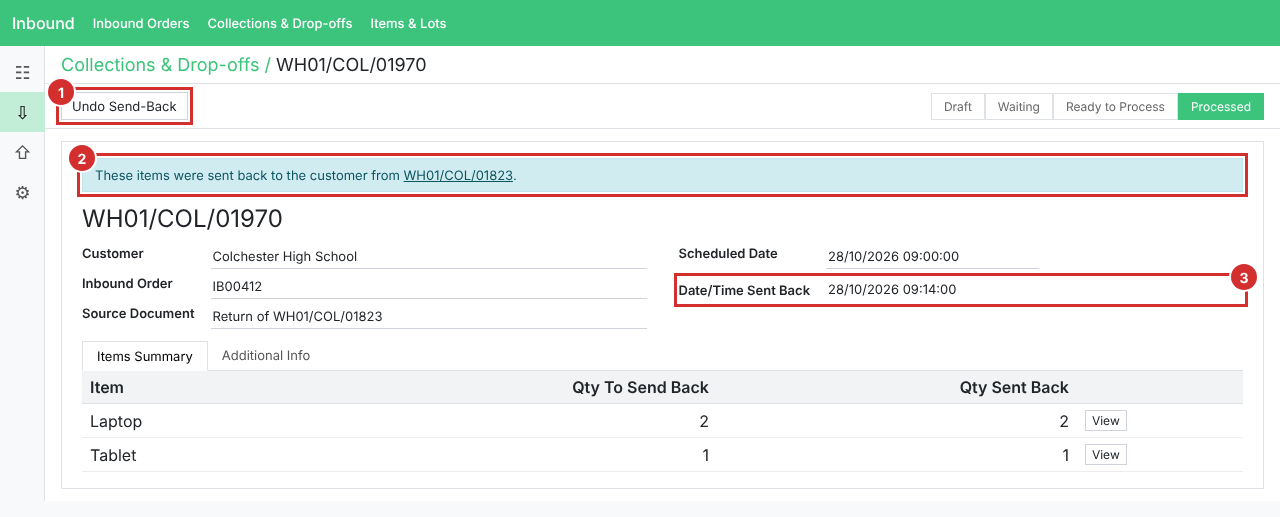
- Sent back by mistake, or the items have come back? A stock manager (Inventory Administrator) can press Undo Send-Back on the confirmed send-back transfer. It asks first, saying how many items will come back.
- The items go back into the locations they left from, under their own item numbers, and lose their Sent Back mark. Log notes on the send-back and the collection say who undid it. On a purchase-order job the order's Received goes back up.
- If any item has moved since it went back, the undo is refused and names it. Bring that item back in by hand instead.