Optimise Route puts the stops on a driver's route in the quickest order for you. It asks your maps provider for the order with the shortest driving time, keeps each collection inside its Collect Between where it can, and shows you the result straight away, so you can check it before you save anything.
This guide is for office staff who plan routes on the Route Planning board. You need the Route Planner access to use the board.
1. What Optimise Route does
On the Route Planning board, Optimise Route sits beside Confirm Route, above the route you are looking at. It shows on an open route with two or more stops. When you click it, your maps provider works out the order of the stops with the shortest driving time from the depot and back again. The board puts the stops in that order, works out the arrival times again, and tells you the new driving time and how much it saved.
Only the stops' map positions, their estimated durations and their collection windows are sent to your maps provider. Customer names, addresses, contact details and item details are never sent.
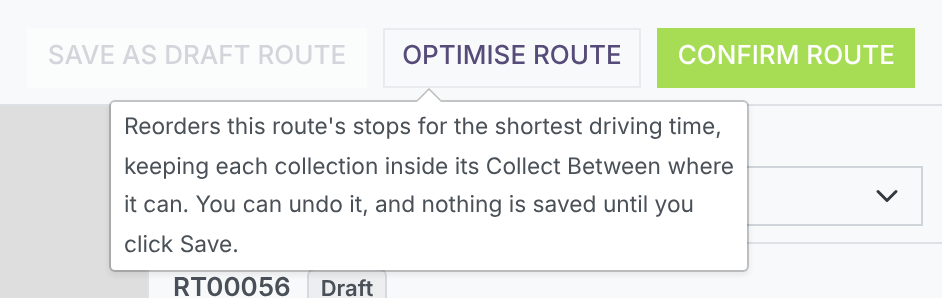
Optimise Route, beside Confirm Route, with the tip that shows when you hover over it.
2. Before you start
- A maps provider and its key are set under Settings > Inbound > Route Planning & Maps (an administrator sets these). We recommend Geoapify, which offers route optimisation. Google Maps places addresses and works out arrival times, but it does not offer route optimisation, so Optimise Route is greyed out with it.
- Every stop on the route, and the depot, is on the map.
- The route has at least two stops.
3. Optimising a route
Open Inbound > Collections & Drop-offs > Route Planning, choose the date, then choose the driver in Driver on the right. Their stops are listed under Stops in the order you set, each with the time the driver should arrive, and the totals for the day are underneath.
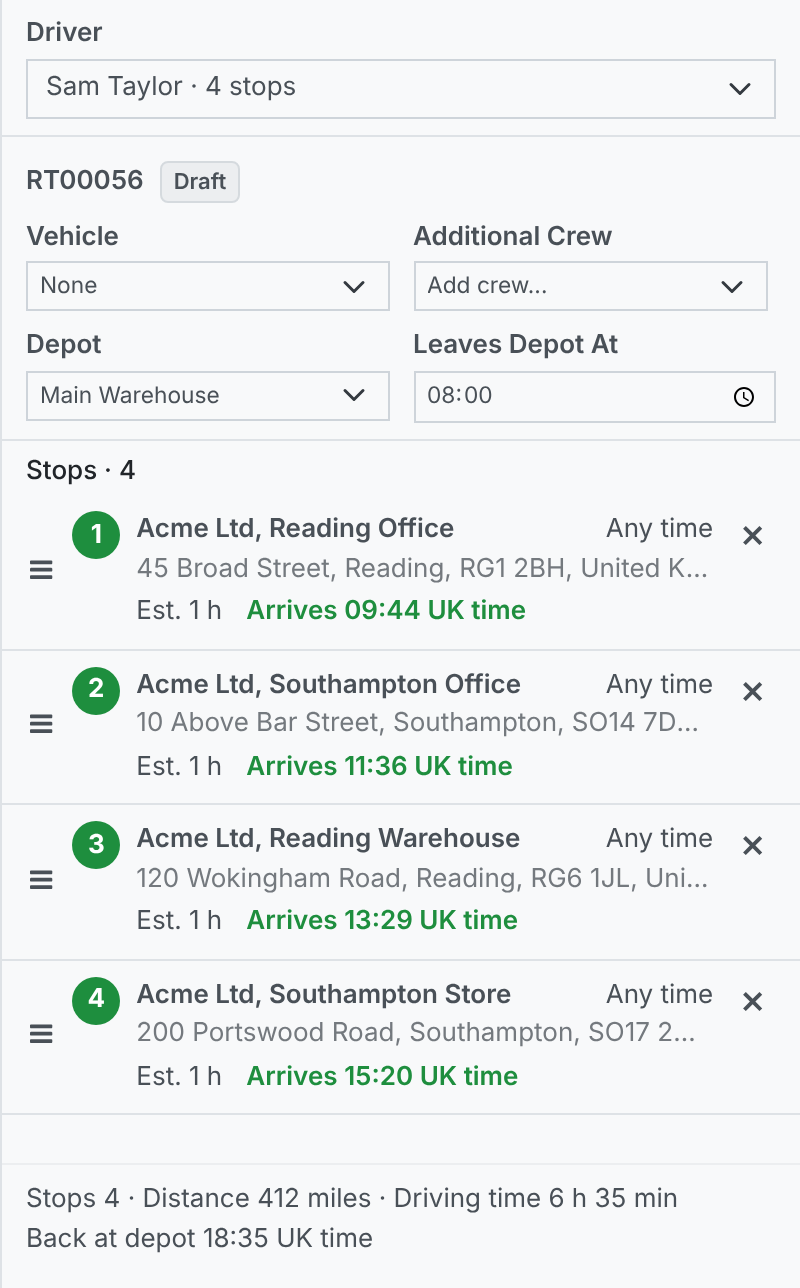
A route planned by hand: Reading, Southampton, Reading, Southampton, with 6 h 35 min of driving.
Click Optimise Route. After a moment the stops move into the quickest order, the arrival times and the totals are worked out again, and the road line on the map follows the new order.
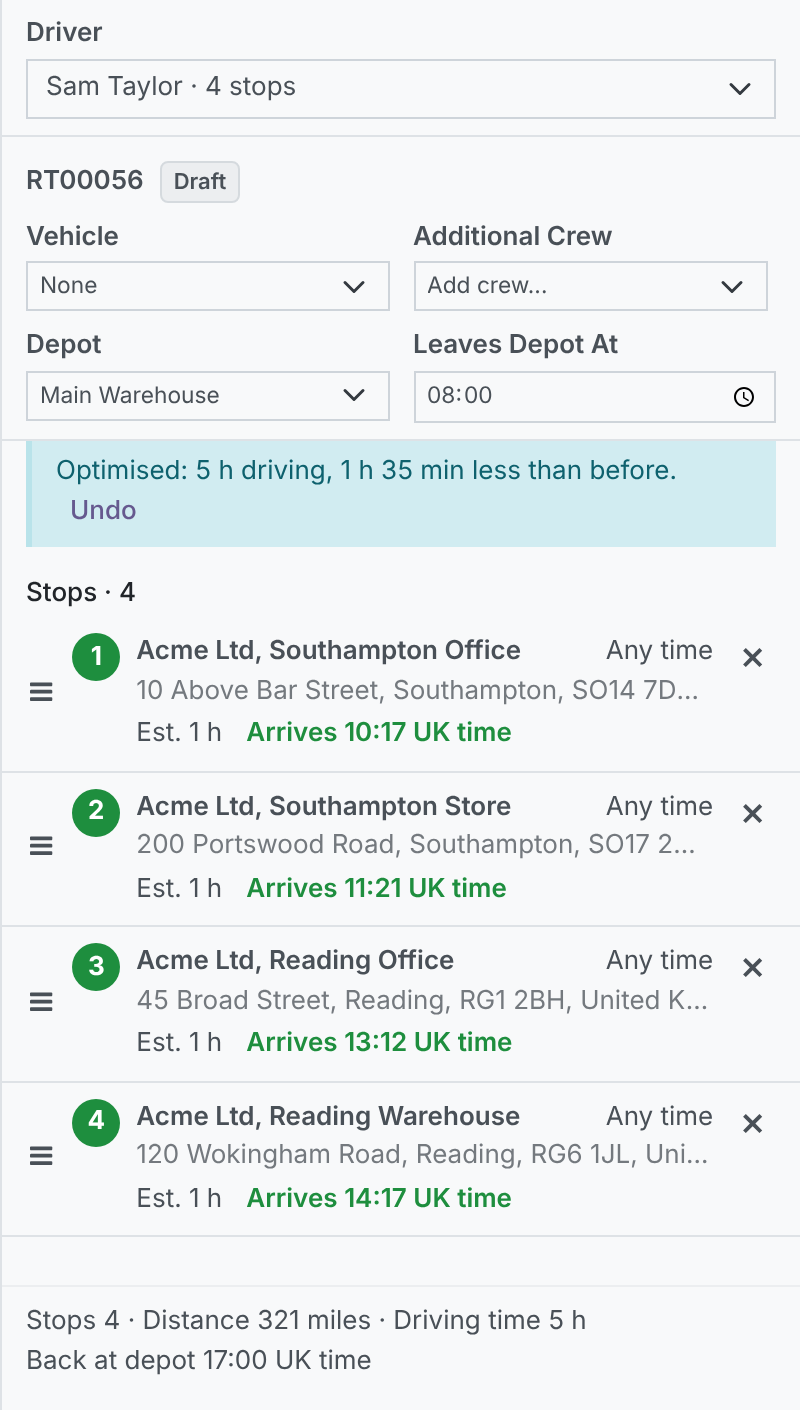
The same route after Optimise Route: both Southampton stops together, then both Reading stops, with 5 h of driving.
4. Reading the result
A line above the stops tells you what happened, for example "Optimised: 5 h driving, 1 h 35 min less than before." It gives the new driving time and how much less it is than the order you had. If your order was already the quickest, it says so, for example "Optimised: 2 h driving, already the quickest order."
Check that the order makes sense for your day before you save. You know things your maps provider does not, such as a site that is only open in the morning but has no collection window set.
5. Collections with a Collect Between
A collection's Collect Between says when the visit should start. Optimise Route keeps each collection inside its Collect Between where it can, and plans the rest of the day around it.
When the vehicle would get to a stop before its Collect Between opens, it waits there until the window opens. That stop shows Arrives at the time the window opens, with the wait in grey beside it, for example "Arrives 16:00 UK time" and "Waits 4 h 47 min". The stops after it, and Back at depot, count on from the time its window opens. A stop that waits is not counted as not fitting: only a collection the vehicle cannot reach before its window closes is. Driving time and Distance count only the driving, and Leaves Depot At stays as you set it. To shorten a wait, move Leaves Depot At later or change the order.
When not every window can be met, nothing is dropped from the route. A collection that cannot fit is placed as near its window as it can be, its arrival time shows in amber with "Outside the collection window", and the line says how many could not fit, for example "Optimised: 2 h 10 min driving. 1 stop could not fit its collection window." Try a different Leaves Depot At, or agree another time with the customer, and optimise again.
Stops the driver has already started on, or finished, stay where they are, at the start of the route.
6. Undo, and changing the order yourself
Click Undo at the end of the line to put back the order, the arrival times and the road line you had before. You can still change the order yourself after optimising: drag a stop up or down by the handle on its left.
7. Saving, and what the driver sees
Nothing is saved until you click Save as Draft Route or Confirm Route, or Save Changes on a route you have already confirmed. If you leave the board without saving, the route stays as it was. Changes to a confirmed route go to the driver's phone in Driver Hub.
8. When Optimise Route is greyed out, or cannot optimise
Hover over a greyed-out Optimise Route to see why:
- "Your maps provider does not offer route optimisation." Your maps provider is Google Maps. An administrator can switch to Geoapify under Settings > Inbound > Route Planning & Maps.
- "Set a maps provider under Settings > Inbound > Route Planning & Maps to use Optimise Route." No maps provider has been set yet.
If your maps provider cannot answer, the line above the stops says so in amber and your order is left exactly as it was:
- "Could not optimise: the maps provider is not responding. Your order is unchanged." Try again in a few minutes.
- "Could not optimise: the maps provider rejected the request. Check the Maps API Key, or your plan's limits, under Settings > Inbound > Route Planning & Maps." The key is wrong, or your provider account has used up its allowance.
- "Could not optimise: the depot or a stop is not on the map yet. Your order is unchanged." Correct the address, or wait for it to be placed on the map, then try again.
9. Your maps provider's allowance
Each Optimise Route, and each time arrival times are worked out again, uses some of your maps provider's allowance. If you plan many routes, many times a day, check your provider's plan.
10. Related guides
Read more: Setting up Drivers and Crew for Collections (opens in a new tab), Setting up drivers for Driver Hub (opens in a new tab), Doing a collection, including no signal (opens in a new tab).