A report can go to one customer's contacts, or to many customers at once, and each customer only ever gets their own rows. This guide covers both, and what to check afterwards.
1. One customer: Email Report to Customer
Open the report and press Email Report to Customer. Under 1. Who and what, choose the Customer, then who gets it under Send To: only contacts of that customer with an email address can be chosen. When this report has gone to that customer before, Send To and Copy To (Staff) are filled in with the last choice, and a line says so. A panel at the top of the pop-up says in green when it is ready, with how many rows the customer's copy will have, or in red what is still needed. Press Next: Write the Email to see the email under 2. The email, click the attachment's name to check the file, then press Send Email to Customer.
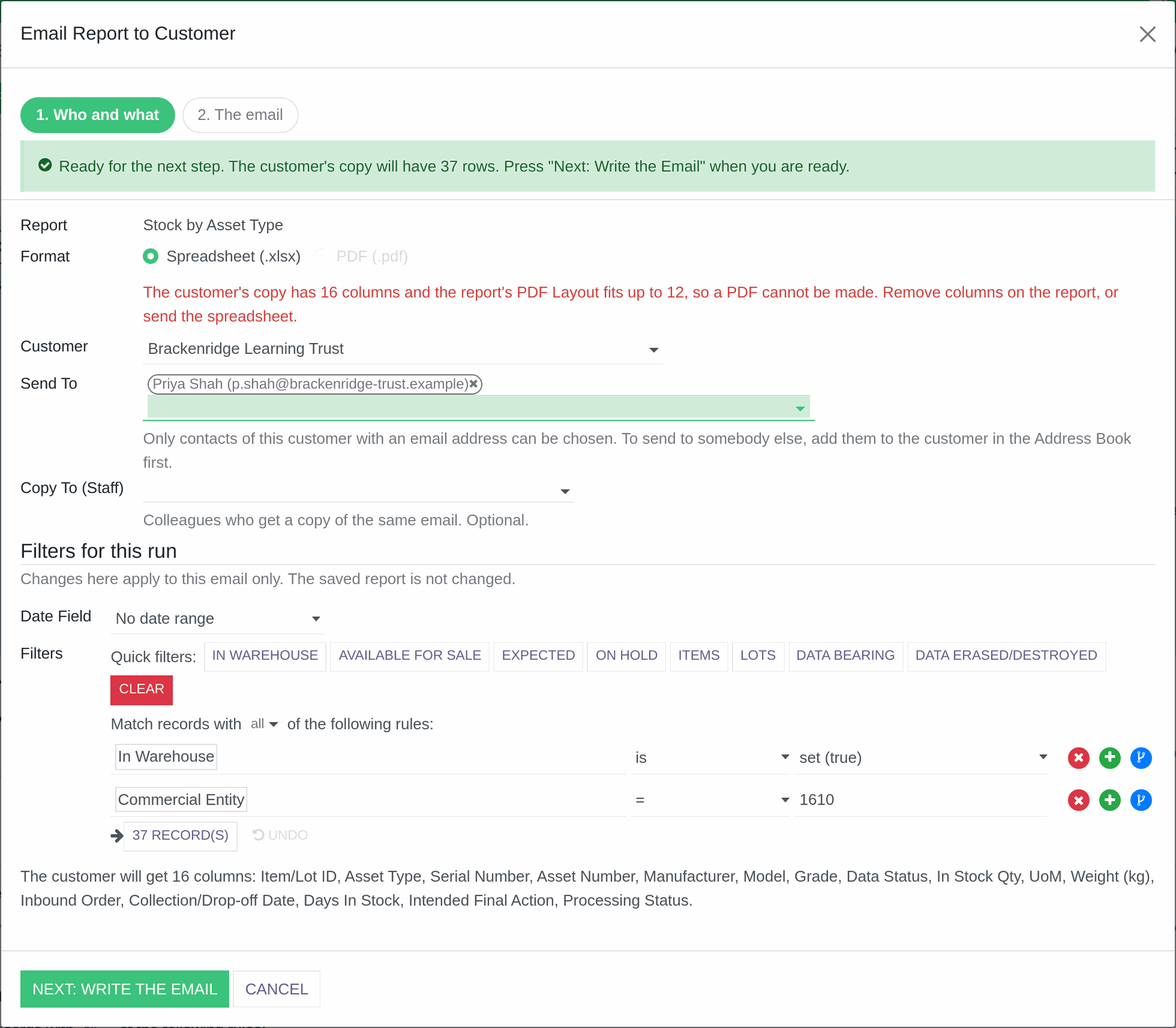
Email Report to Customer: choosing who gets it.
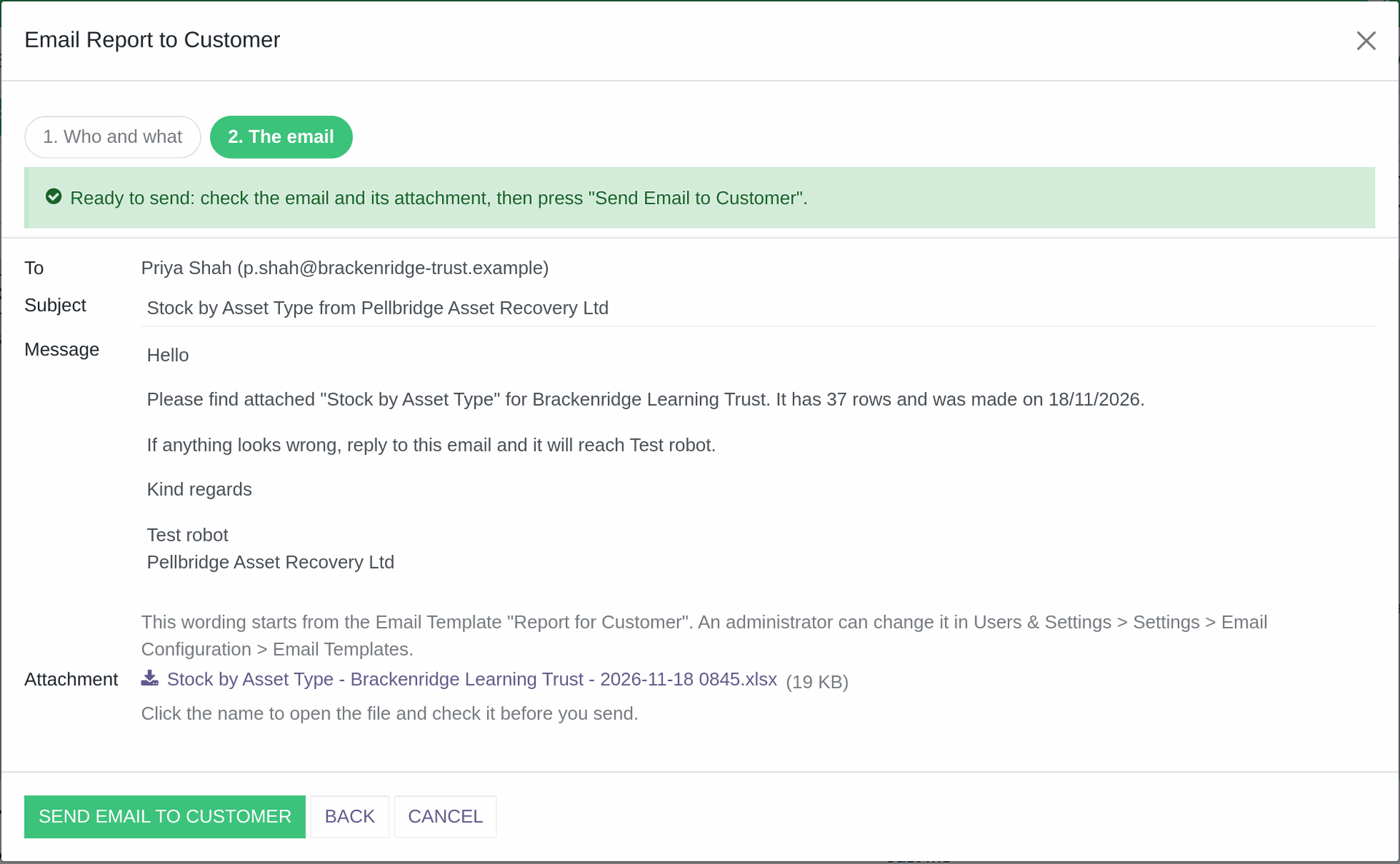
Email Report to Customer: the email, before it goes.
2. What a customer gets
A customer only ever gets their own rows, whatever the filters say. Money columns, such as a price, a cost or a value, are left out of a customer's copy unless an administrator has ticked Show Money Columns to Customers on that report, and the pop-up lists any columns left out. The one exception is a report whose Rows Customers Get is All rows, made for trade buyers: see Reports: sending trade buyers a list of your stock (opens in a new tab).
3. Afterwards
The file you sent is kept as a Generated Report, and its Email section shows Emailed To, Copied To (Staff), Emailed On, Emailed By and Email Status: "Sent" means the email left the system, and "Failed" that it could not be sent, with the reason in the Log Notes. To send the same file again, to the same people or to others at that customer, press Email Again to Customer. The customer's own record also gets a note saying which report was emailed, to whom and by whom.
4. Many customers: Email Report to Customers
Choose the customers on the report's Recipients tab: press Add Customers, and set who at each one gets it under Send To. Then press Email Report to Customers. The pop-up lists every customer with how many rows they will get and What Will Happen, such as "Will be emailed" or "Skipped: no rows". Press Next: Check the Email to see the email as one customer will get it, and add a sentence or two for everyone under Note for Every Email if you need to. Spreadsheets go out at about 20 a minute and PDFs at about 4 a minute, so a big send takes a while.
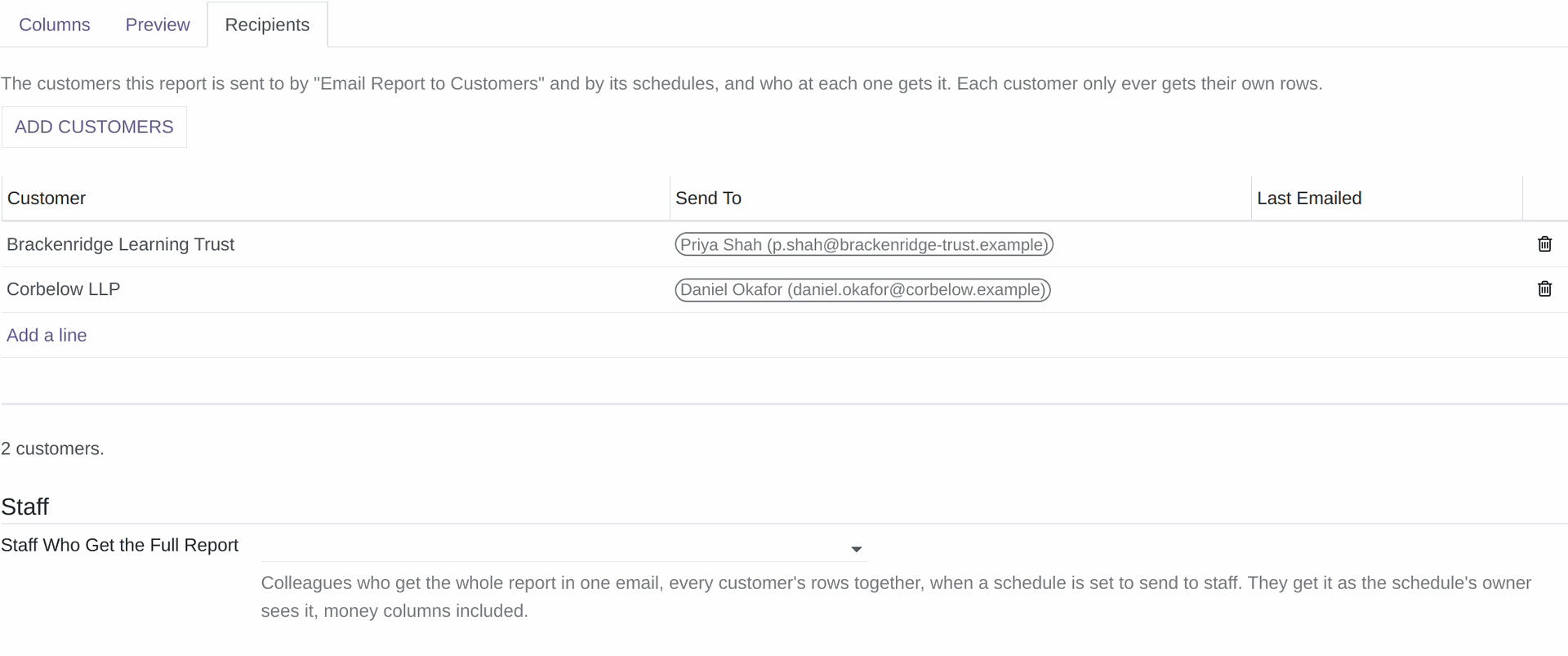
The Recipients tab of a report.
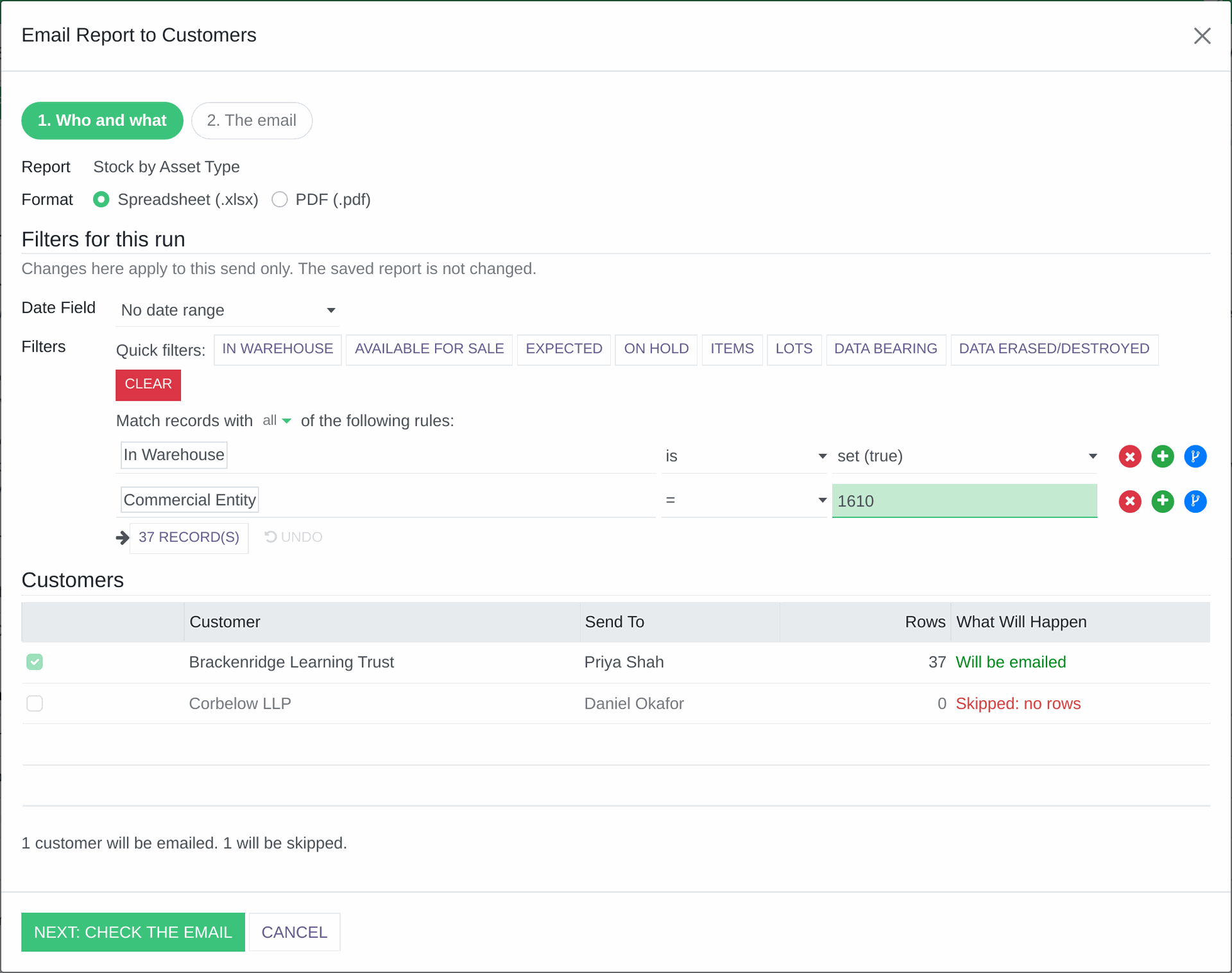
Email Report to Customers: every customer and what will happen.
5. Email Runs
Each send makes an Email Run, under Reports > Email Runs, with a line for each customer showing its Result (Waiting, Sent, Skipped or Failed) and the reason. A run reads Sending while it works, then Finished, Finished with Failures or Stopped, and you get a notification when it ends. Stop Sending only stops the customers still waiting, and Try Failed Again has another go at the ones that failed. An email that has gone cannot be recalled.
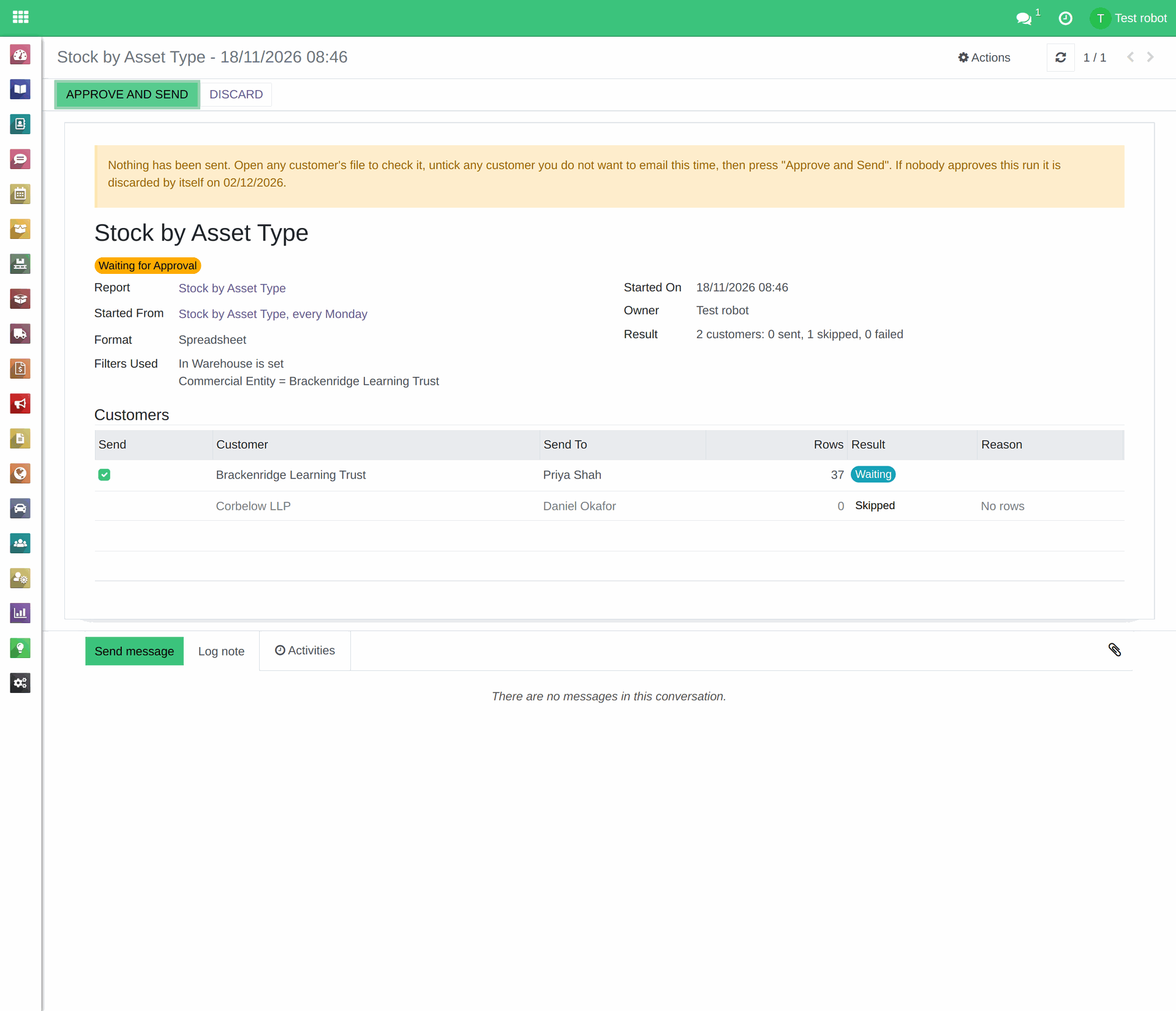
An Email Run, with a line for each customer.
Read more:
- Reports: how they work, and building your own (opens in a new tab)
- Reports: generating a spreadsheet or PDF (opens in a new tab)
- Reports: schedules that send a report by themselves (opens in a new tab)
- Reports: sharing reports on the Customer Portal (opens in a new tab)
- Reports: sending trade buyers a list of your stock (opens in a new tab)