To change many records at once - a new phone number on dozens of companies, say - export them, change the file, and import it back on the same list. RecyclyERP matches each row to its record and updates it, rather than adding it again. This works on any list with Advanced Export in its Actions menu.
Importing is an advanced feature, so some confidence with spreadsheets helps. If you have not imported before, read Importing Data into RecyclyERP: Step by Step (opens in a new tab) first. If you are unsure about your file, email it to support@recyc.ly and Recycly Support will check it for you. For one or two records, changing them on screen is quicker.
How it works: the id column
Export with I want to update data (import-compatible export) ticked, and the file's first column, headed id, holds a reference for each record, such as __export__.res_partner_79_ed6521da. Import the file back on the same list, and each row is matched to its record by that reference, and the record is updated.
IMPORTANT: never change or delete the id column. A row without its id is imported as a new record, so you would end up with a second copy.
Worked example: a new phone number for a company
1. Tick the records and choose Advanced Export
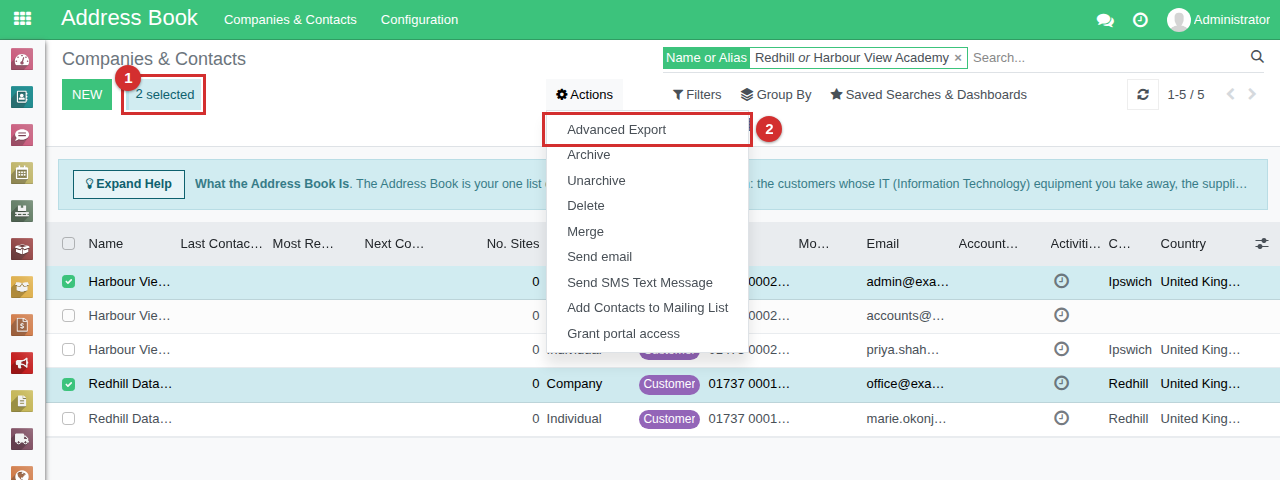
Go to Address Book > Companies & Contacts and tick the records to change - here the two Companies, Harbour View Academy and Redhill Data Services Ltd (1). Then choose Actions > Advanced Export (2).
2. Choose the columns and export
Tick I want to update data (import-compatible export) (1). With it ticked, only fields that can be imported back are offered. Under Fields to export (2), keep the columns you want to change - here Name and Phone - and take the others out with the bin beside each. To add a column, click the + beside it under Available fields. Leave Export Format as XLSX and click Export (3).
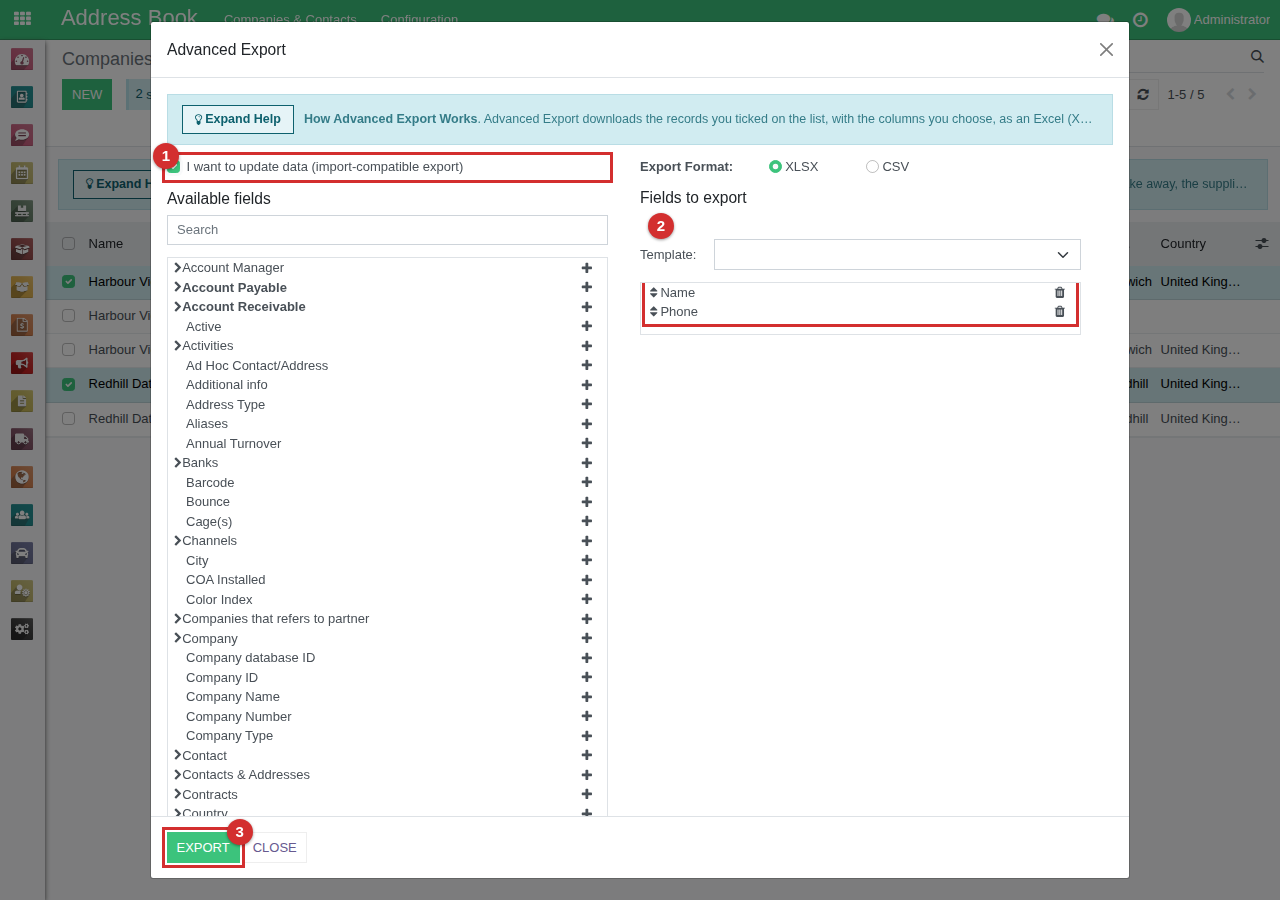
The How Advanced Export Works panel at the top of the window sums up these steps.
3. Change the file
The exported file has the id column first, then the columns you chose:
| id | name | phone |
|---|---|---|
| __export__.res_partner_79_ed6521da | Harbour View Academy | 01473 000200 |
| __export__.res_partner_77_0e78ec46 | Redhill Data Services Ltd | 01737 000100 |
Change Harbour View Academy's phone to 01473 000299 and save the file, still as Excel (.xlsx), so phone numbers and other values starting with 0 keep their leading zero. Leave the id column exactly as it is.
4. Import it back on the same list
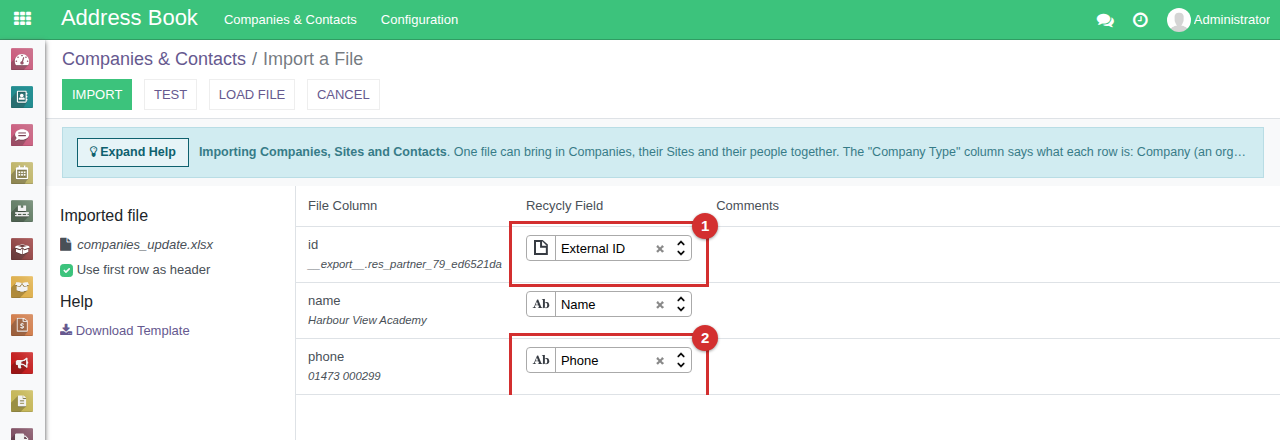
On Address Book > Companies & Contacts, click Import and load the file. The id column is matched to External ID (1), which is what matches each row to its record, and the phone column to Phone (2).
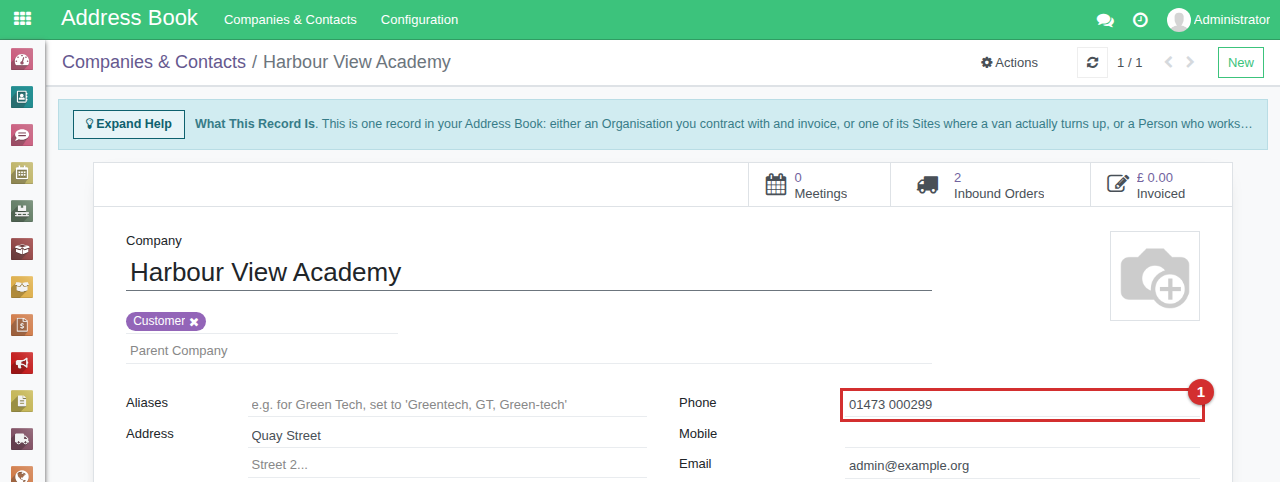
Click Test. When it says Everything seems valid., click Import. RecyclyERP says 2 records successfully imported: both Companies were updated, and none was added. Harbour View Academy now has its new phone number (1).
Things to know
- Only the columns in your file change. A field you did not export is left as it is.
- Import the file on the list it came from. The id column only matches records of the kind it was exported from.
- Test first. An import cannot be undone with one click, so check what Test reports before you click Import.
- Changing Items & Lots? This works for them too. Their import screen also offers "Update existing Items/Lots (match by Item/Lot ID)" for a file that did not come from an export: see Importing Items & Lots (opens in a new tab).